Showing posts with label Inventory. Show all posts

Sunday, 12 June 2016

Basics of Demand, Forecast, MPS & MRP

What is MPS?

MPS term is used for Master Production Schedule. It is used to plan items which have direct demand. Like Sales Order, Service Orders and Forecasts. It is run Weekly based on Orders and forecasts for that period.

What is MRP?

MRP term is used for Material Requirements Planning. It is used to plan items which have dependent demand. Like sub items used to produce FG or are defined in BOM. It is run Daily to expedit parts required to produce the plan.

What is Forecast?

Forecasting allows your company to create "what if" scenarios and efficiently and cost-effectively plan for and meet demand. Accurate forecasting can make a critical difference in customer satisfaction levels with regard to order promising dates and on-time delivery.

The forecasting functionality in the program can be used to create sales or production forecasts, in combination or independently.

What is Demand?

Calculation is done order-by-order, meaning that the order that includes the demand line with the earliest due date or shipment date is considered first, and all other demand lines in that production order, irrespective of their individual due dates or shipment dates, are also calculated for that order. When the calculation is completed, all unfulfilled demand is displayed as planning lines, sorted by the earliest demand date, with the various quantity fields filled in.

Actual demand is calculated from Sales Order, Service Orders, Components Needed, Job Planning Lines.

This demand is compared with the Forcasted demands like defined in Production Forecast.

Regenerative Plan is calculated as per Period, MPS, MRP and other provided parameters.

Lets understand this via a simple Example:

Step-1

Define Forecast for Item A as requirement of 1000 Qty for Jan Month.

Step -2

Run the Regenerative Plan, you will get the Planning for Item A with due date as 1st Jan of 1000 Qty.

Let us see what happens under different demand levels.

Scenario-1

When demand is less than Forecast for the month.

Let us Make a Sales Order for 200 Qty of Item A.

Lets see the impact of this on our Plan.
Sales demand is for 200 Qty

Forecast demand will be for 800 Qty (1000 - 200)

Actual demand in this case is of 200 Qty

If we run our Plan 2 lines will be created as below

a) 200 Qty with due date equivalent to Sales Order date

b) 800 Qty with due date as 1st Jan from Forecast
If we see our Total demand is still 1000 Qty

Scenario-2

When demand is equal to Forecast for the month.

Let us Make a Sales Order for 1000 Qty of Item A.

Lets see the impact of this on our Plan.
Sales demand is for 1000 Qty

Forecast demand will be for 0 Qty (1000 - 1000)

Actual demand in this case is of 1000 Qty

If we run our Plan 1 line will be created as below

a) 1000 Qty with due date equivalent to Sales Order date
If we see our Total demand is still 1000 Qty

Scenario-3

When demand is greater than Forecast for the month.

Let us Make a Sales Order for 1500 Qty of Item A.

Lets see the impact of this on our Plan.
Sales demand is for 1500 Qty

Forecast demand will be for 0 Qty

Actual demand in this case is of 1500 Qty

If we run our Plan 1 line will be created as below

a) 1500 Qty with due date equivalent to Sales Order date
If we see our Total demand is now 1500 Qty

Will comeup with more details in my upcomming posts.

Saturday, 11 June 2016

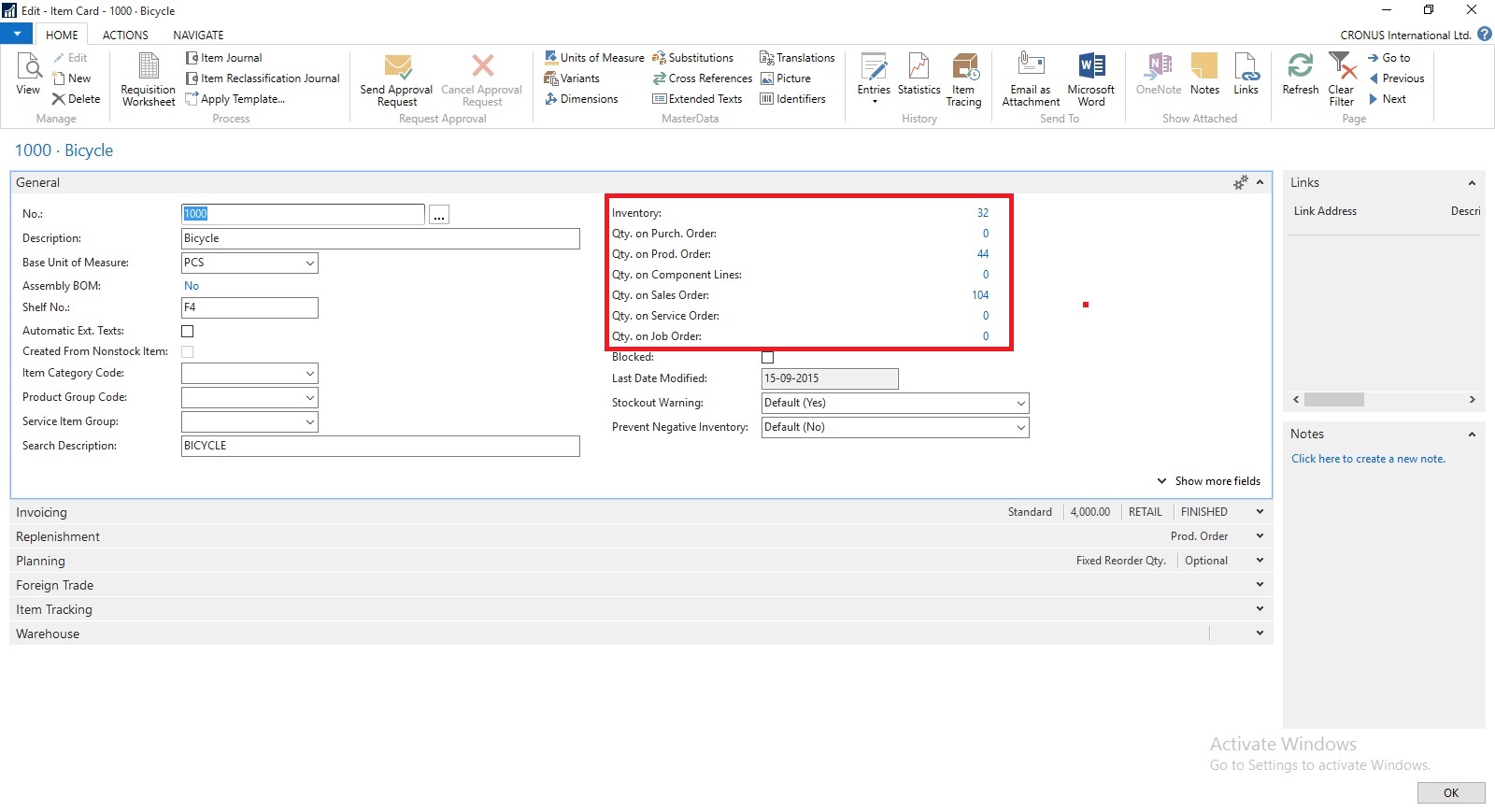
How Inventory is Calculated in Navision 2016

Today we will see terms used for Inventory and how Inventory is calculated in Navision.

InvProj-1

You can find details of Inventory on Item Card itself. Also how much Inventory is available or required at different area in ERP.

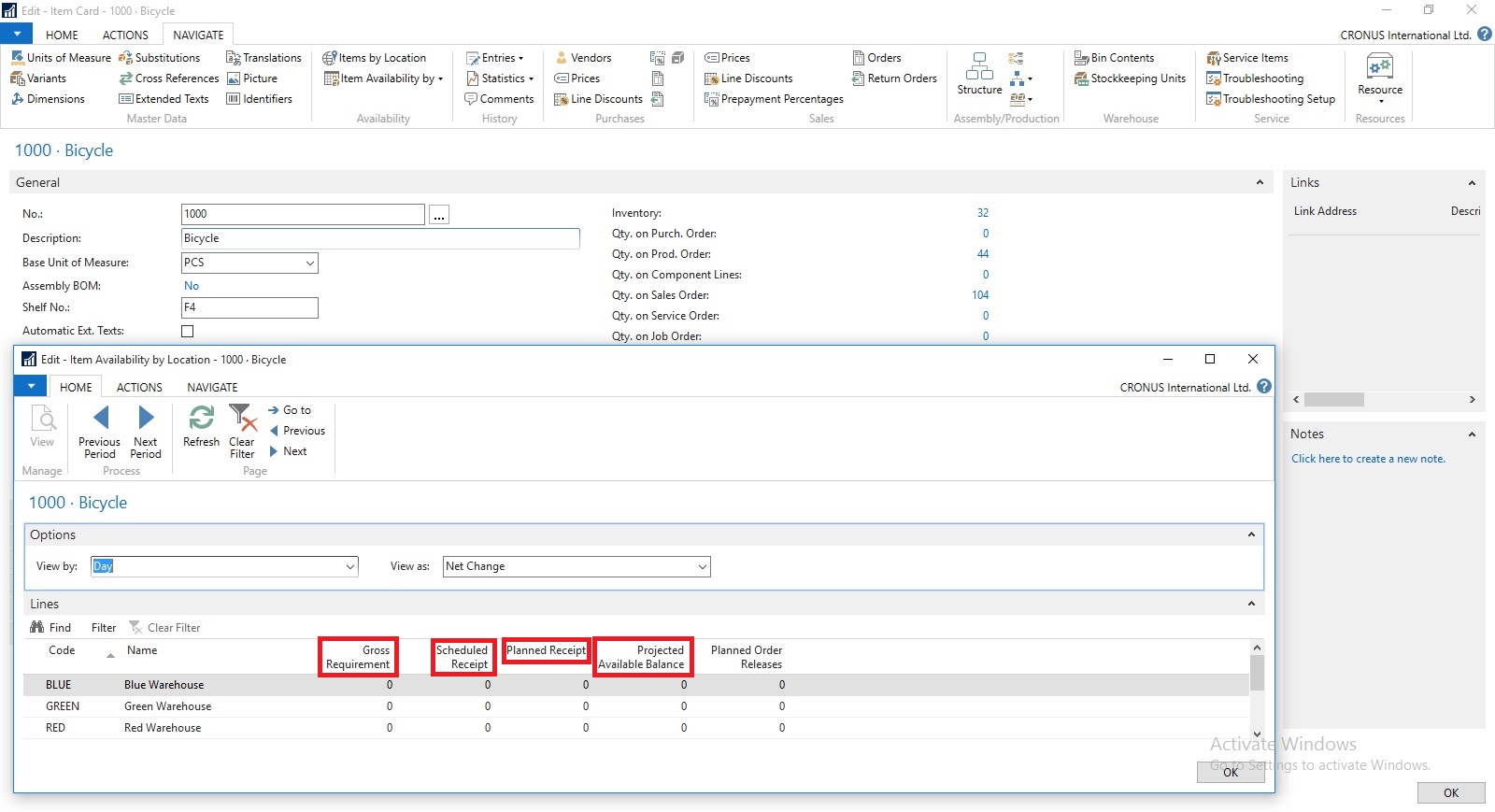
InvProj-2

If you open Item Availability by Location you will find in more details. When you drilldown you can find in more details from where these figure comes from.

Scheduled Receipts:

Here all the entries from below area is included:
a) Purchase Orders

b) Transfer Orders

c) Firm Planned Production Order

d) Release Production Order

e) Assembly Orders

How Navision calculates?

AvailType::"Scheduled Order Receipt":
BEGIN
InsertEntry(DATABASE::"Purchase Line",Item.FIELDNO("Qty. on Purch. Order"),PurchLine.TABLECAPTION,Item."Qty. on Purch. Order");
InsertEntry(DATABASE::"Prod. Order Line",Item.FIELDNO("FP Order Receipt (Qty.)"),STRSUBSTNO(Text002,ProdOrderLine.TABLECAPTION),Item."FP Order Receipt (Qty.)");
InsertEntry(DATABASE::"Prod. Order Line",Item.FIELDNO("Rel. Order Receipt (Qty.)"),STRSUBSTNO(Text003,ProdOrderLine.TABLECAPTION),Item."Rel. Order Receipt (Qty.)");
InsertEntry(DATABASE::"Transfer Line",Item.FIELDNO("Qty. in Transit"),Item.FIELDCAPTION("Qty. in Transit"),Item."Qty. in Transit");
InsertEntry(DATABASE::"Transfer Line",Item.FIELDNO("Trans. Ord. Receipt (Qty.)"),Item.FIELDCAPTION("Trans. Ord. Receipt (Qty.)"),Item."Trans. Ord. Receipt (Qty.)");
InsertEntry(DATABASE::"Sales Line",0,SalesLine.TABLECAPTION,Item."Qty. on Sales Return");
InsertEntry(DATABASE::"Assembly Header",Item.FIELDNO("Qty. on Assembly Order"),AssemblyHeader.TABLECAPTION,Item."Qty. on Assembly Order");
END;

Planned Receipts:

Here all the entries from below area is included:
a) Planned Production Order

b) Planning Worksheet

c) Requisition Worksheet

How Navision calculates?

AvailType::"Planned Order Receipt":
BEGIN
InsertEntry(DATABASE::"Requisition Line",Item.FIELDNO("Purch. Req. Receipt (Qty.)"),ReqLine.TABLECAPTION,Item."Purch. Req. Receipt (Qty.)");
InsertEntry(DATABASE::"Prod. Order Line",Item.FIELDNO("Planned Order Receipt (Qty.)"),STRSUBSTNO(Text000,ProdOrderLine.TABLECAPTION),Item."Planned Order Receipt (Qty.)");
END;

Gross Requirement:

Here all the entries from below area is included:
a) Sales Order

b) Transfer Order

c) Firm Planned Production Order Components

d) Released Production Order Components

e) Job Planning Lines

f) Service Orders

g) Assembly Orders Components

How Navision calculates?

AvailType::"Gross Requirement":
BEGIN
InsertEntry(DATABASE::"Sales Line",Item.FIELDNO("Qty. on Sales Order"),SalesLine.TABLECAPTION,Item."Qty. on Sales Order");
InsertEntry(DATABASE::"Service Line",Item.FIELDNO("Qty. on Service Order"),ServLine.TABLECAPTION,Item."Qty. on Service Order");
InsertEntry(DATABASE::"Job Planning Line",Item.FIELDNO("Qty. on Job Order"),JobPlanningLine.TABLECAPTION,Item."Qty. on Job Order");
InsertEntry(DATABASE::"Prod. Order Component",Item.FIELDNO("Scheduled Need (Qty.)"),ProdOrderComp.TABLECAPTION,Item."Scheduled Need (Qty.)");
InsertEntry(DATABASE::"Planning Component",Item.FIELDNO("Planning Issues (Qty.)"),PlanningComponent.TABLECAPTION,Item."Planning Issues (Qty.)");
InsertEntry(DATABASE::"Transfer Line",Item.FIELDNO("Trans. Ord. Shipment (Qty.)"),Item.FIELDCAPTION("Trans. Ord. Shipment (Qty.)"),Item."Trans. Ord. Shipment (Qty.)");
InsertEntry(DATABASE::"Purchase Line",0,PurchLine.TABLECAPTION,Item."Qty. on Purch. Return");
InsertEntry(DATABASE::"Assembly Line",Item.FIELDNO("Qty. on Asm. Component"),AssemblyLine.TABLECAPTION,Item."Qty. on Asm. Component");
END;

Planned Order Releases:

How Navision calculates?

AvailType::"Planned Order Release":
BEGIN
InsertEntry(DATABASE::"Requisition Line",Item.FIELDNO("Purch. Req. Release (Qty.)"),ReqLine.TABLECAPTION,Item."Purch. Req. Release (Qty.)");
InsertEntry(DATABASE::"Prod. Order Line",Item.FIELDNO("Planned Order Release (Qty.)"),STRSUBSTNO(Text001,ProdOrderLine.TABLECAPTION),Item."Planned Order Release (Qty.)");
InsertEntry(DATABASE::"Requisition Line",Item.FIELDNO("Planning Release (Qty.)"),ReqLine.TABLECAPTION,Item."Planning Release (Qty.)");
END;

Finally we can calculate Projected Available Inventory as below formula:
Inventory + Scheduled Receipts + Planned Receipts - Gross Requirement

thats all for today, will come with more information in my upcomming posts.


Wednesday, 18 May 2016

How do I : Adjust Inventory in Madeira

Do you know, it is very easy to Adjust Inventory in Madeira.

Let us see how this action can be done.

Start with Login to Madeira using your credentials.

InvAdj-1

From Landing page, choose Item from Navigation Bar in Left.

InvAdj-2


From the list of Item choose Edit or View to access the Card of selected Item.

InvAdj-3

Now from action choose Adjust Inventory.

InvAdj-4

Enter your New Inventory Value. Like in Below screen I want to Add 50 more Inventory.

I Enter 150 including Existing Inventory in System.

InvAdj-5

Select OK.

Inventory now increases by 50 adding 100 to existing inventory making total of 150 available inventory.

InvAdj-6

We are done with our task, Adjusting Inventory.

I will come with more details in my upcoming posts.

Till then keep exploring and learning.


Monday, 30 November 2015

Inventory Valuation

Inventory valuation is the determination of the cost that is assigned to an inventory item, as expressed by the following equation.
Ending inventory = beginning inventory + net purchasescost of goods sold

The calculation of inventory valuation uses the Cost Amount (Actual) field of the value entries for the item.

The entries are classified according to the entry type that corresponds to the cost components, direct cost, indirect cost, variance, revaluation, and rounding.

Entries are applied against each other, either by the fixed application, or according to the general cost-flow assumption defined by the costing method.

One entry of inventory decrease can be applied to more than one increase entry with different posting dates and possibly different acquisition costs.

Therefore, calculation of the inventory value for a given date is based on summing up positive and negative value entries.

Inventory Valuation report

To calculate the inventory value in the Inventory Valuation report, the report begins by calculating the value of the item’s inventory at a given starting date.

It then adds the value of inventory increases and subtracts the value of inventory decreases up to a given ending date.

The end result is the inventory value on the ending date.

The report calculates these values by summing the values in the Cost Amount (Actual) field in the value entries, using the posting dates as filters.

The printed report always shows actual amounts, that is, the cost of entries that have been posted as invoiced.

The report will also print the expected cost of entries that have posted as received or shipped, if you select the Include Expected Cost field on the Options FastTab.

Values in the Inventory Valuation report is reconciled with the Inventory account in the general ledger, meaning the value entries in question have been posted to the general ledger.

Amounts in the Value columns of the report are based on the posting date of transactions for an item.


Inventory Valuation - WIP report

A manufacturing company needs to determine the value of three types of inventory:

  • Raw Materials inventory

  • WIP inventory

  • Finished Goods inventory


The value of WIP inventory is determined by the following equation.
Ending WIP inventory = Beginning WIP inventory + manufacturing costscost of goods manufactured

As for purchased inventory, the value entries provide the basis of the inventory valuation. The calculation is made using the values in the Cost Amount (Actual) field of the item and capacity value entries associated with a production order.

The purpose of WIP inventory valuation is to determine the value of the items whose manufacturing has not yet been completed on a given date.

Therefore the WIP inventory value is based on the value entries related to the consumption and capacity ledger entries.

Consumption ledger entries must be completely invoiced at the date of the valuation.

Therefore, the Inventory Valuation – WIP report shows the costs representing the WIP inventory value in two categories: consumption and capacity.