Let us start with creating a Sales Order:
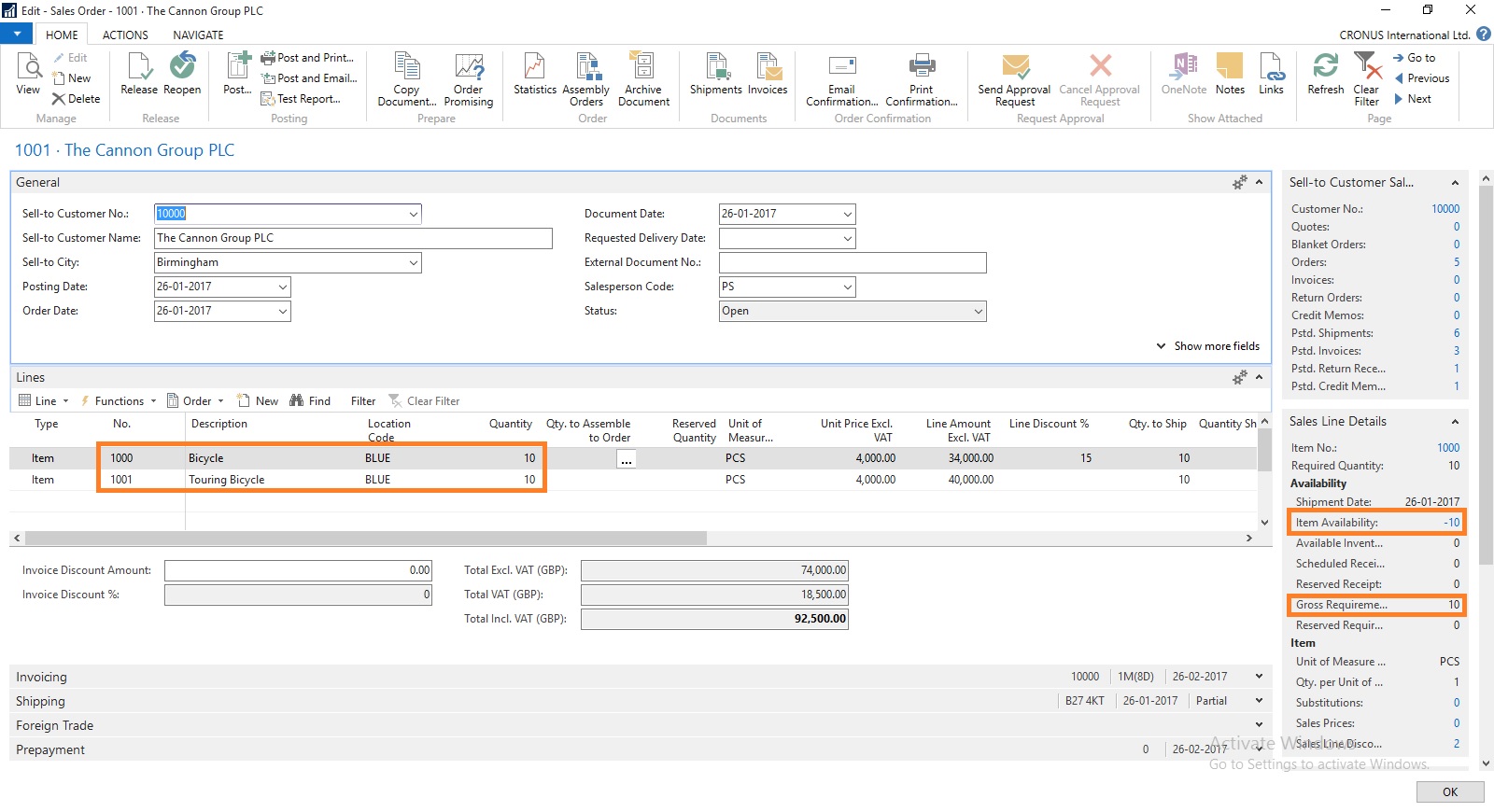
Here you can see we don’t have Available Inventory to fulfil the demand of this Order.
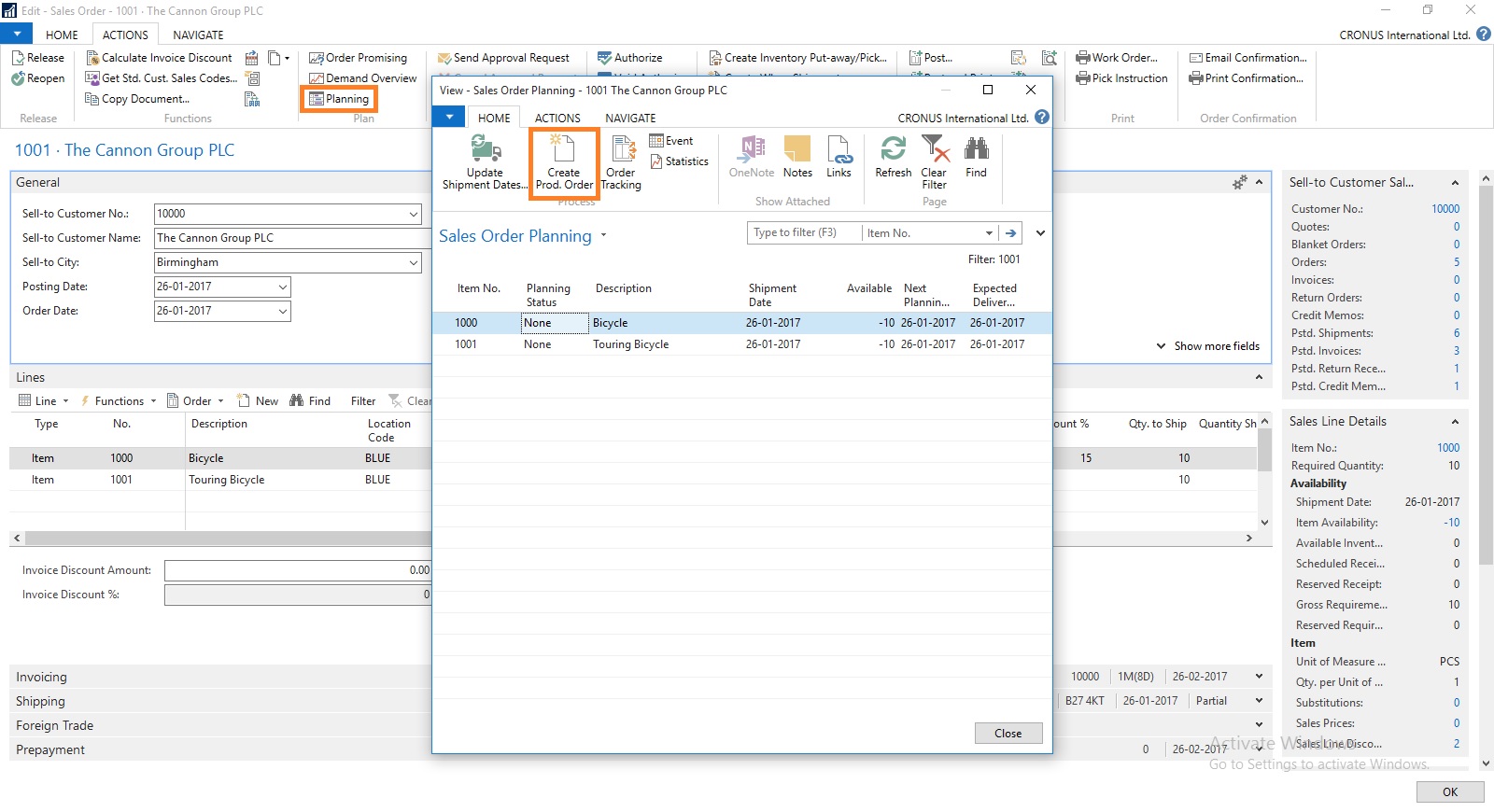
To fulfil the demand we will create Production Order for this Order.
Select Planning from Action TAB on Ribbon.
Sales Order Planning Window Opens, Select Create Production Order.
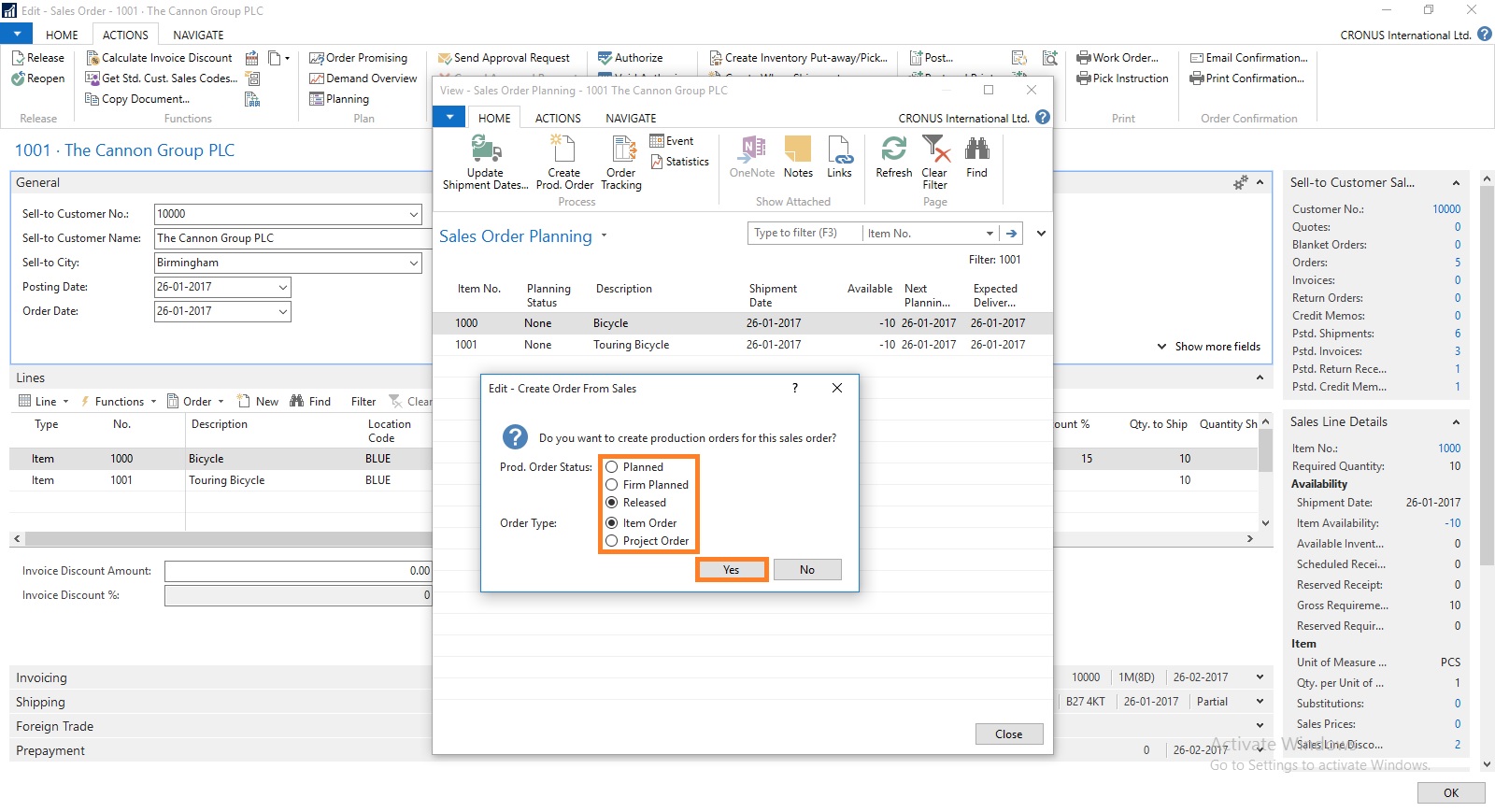
Select the Status for Production Order as desired.
For Order Type you have 2 Options
- Item Order – Production Order is created for each Item on Lines
- Project Order – Single Production order for Entire Order
Select the desired option and respond to Yes.

I have Selected Released & Project Order in my case.
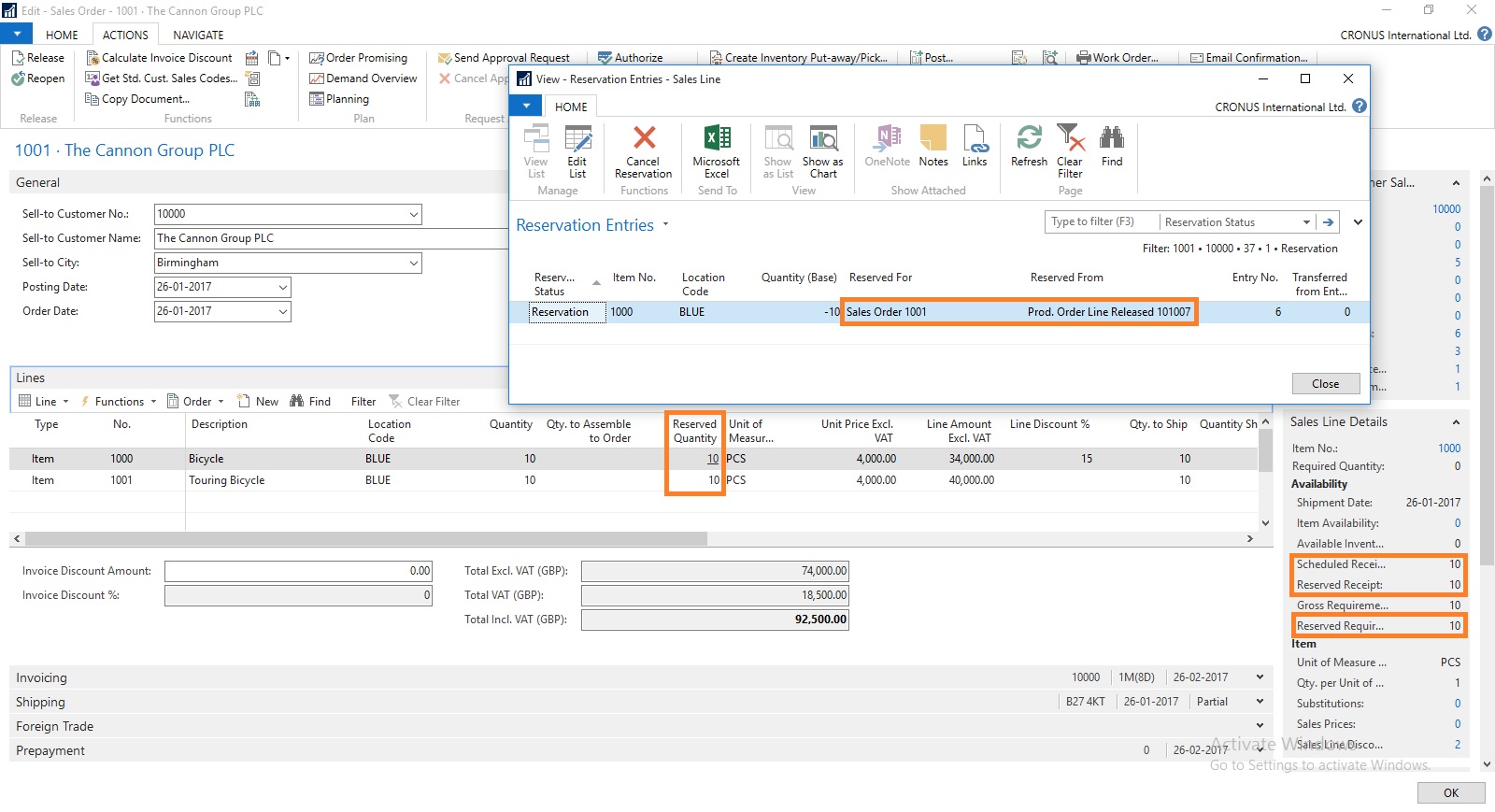
You can check that Quantity to be produced is reserved for this Order.
There could be the situation where you may have few Inventory available, in that case you need to reserve the quantity from Function before creating Production Order else all quantity will be created. In other case only short quantity will be a quantity of Production Order.

Select the line from available lines in Item Ledger Entries (e.g. on hand inventory) and by using the ‘Reserve from Current Line’ function you can reserve those against the sales order line. The ‘Reserved Quantity’ then gets updated and you can see the rest in the ‘Unreserved Quantity’ field.
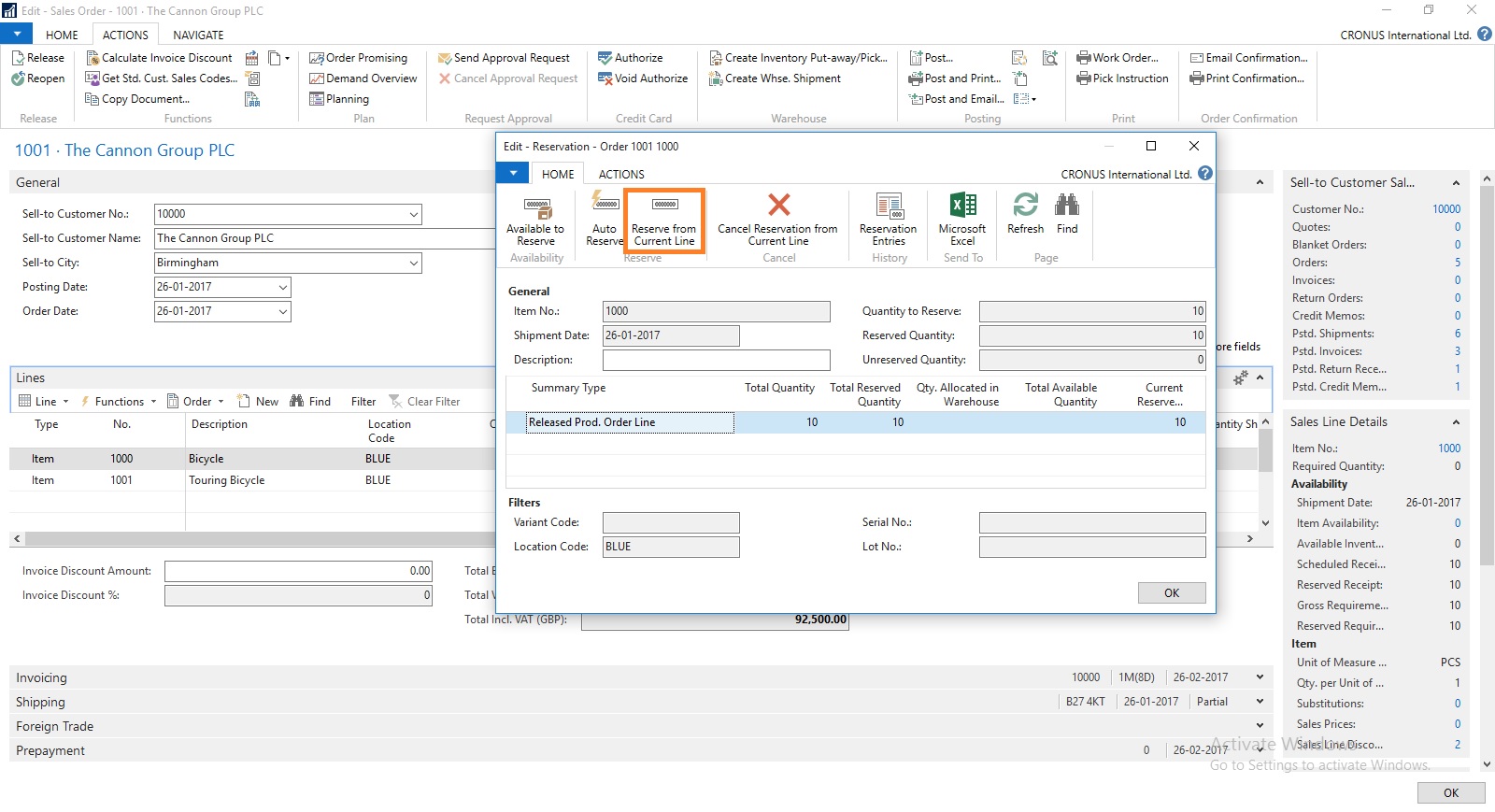
Although in this case entire line is already reserved from the Production Order.
But in case you want to reserve from any available Inventory in hand from Ledger entry.
This was one of the way how you can perform Creating Production Order and Reserving for Sales Order.
We can do the same by another way as below, directly creating Production Order for this Sales Order.
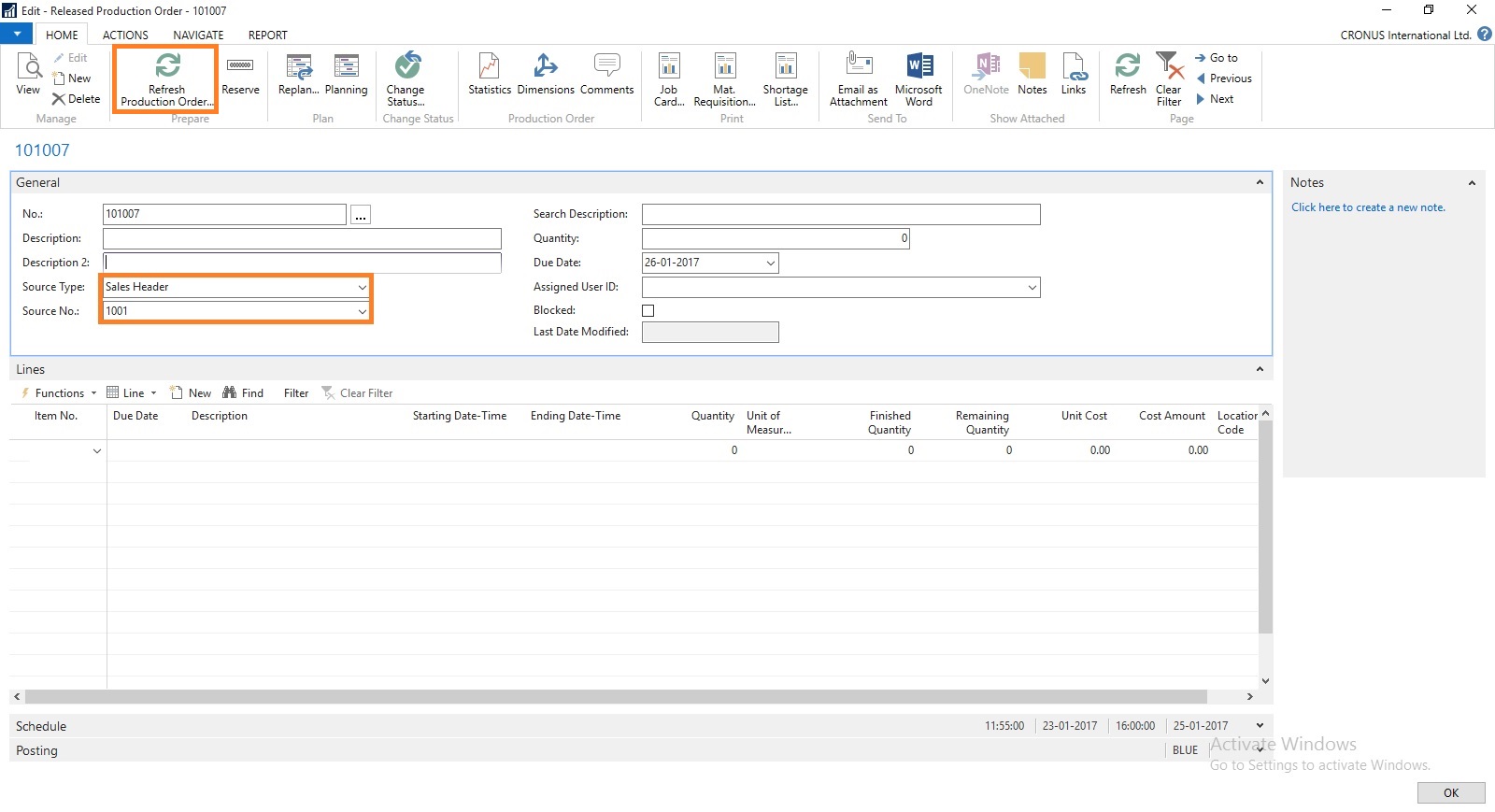
Create a Production Order Select Source Type as Sales Header and Source No as Sales Order No.
Then Refresh the Production Order.


This way we can create and Reserve the Item for required demand.
I will come with more details in my upcoming posts.


