Now Microsoft Enterprise Agreement customers can bring existing licenses to run SQL Server on Azure Virtual Machines. Since the launch of Azure Virtual Machines, customers can already run SQL Server on Azure Virtual Machines through several existing SQL Server images available in the Azure Gallery, or bring their own images to Azure.
These images and capabilities will continue to be supported so customers can continue to take advantage of pay per use licensing for SQL Server on Azure Virtual Machines.
Starting this week, customers with Enterprise Agreement who already have SQL Server Licenses, can use them on Azure Virtual Machines with Microsoft-certified (BYOL) gallery images. These images will not charge for SQL Server licensing, just for compute cost.
For more details see the Link.
Showing posts with label License. Show all posts
Showing posts with label License. Show all posts
Saturday, 28 May 2016

Saturday, 22 August 2015
Uploading License to Tenant in Multitenant Environment
When we deploy solution for Multitenant Environment ever Tenant will be required a Separate License. Depending upon the License agreement with Microsoft every Tenant will either share same License or individual License.
Assume we are implementing Distributor Management System. Where every Tenant is a different Business entity linked with the Parent Group.
In this case the Server & Network is provided by the Parent Group and other Business group will share information but they will use their specific License to use the system, doesn’t matter who pays for fee.
In any case we need to upload License to each database in Multitenancy.
Import-NAVServerLicense
Imports a license file into a Microsoft Dynamics NAV database.
Syntax
Detailed Description
Use the Import-NAVServerLicense cmdlet to import a license file into a Microsoft Dynamics NAV database. If the Microsoft Dynamics NAV Server account specified does not have access to the location where the license file is stored, an error results. Check the Event Log on the Microsoft Dynamics NAV Server computer to see what permissions are required.
After importing a new license, restart all Microsoft Dynamics NAV Server instances to activate the license for client users.
Parameters
-Database<LicenseDatabase>
Specifies the database into which to import the license file. The possible values are described in the following list:
Forces the license file to be local and stored in the Microsoft Dynamics NAV database that is used by the specified Microsoft Dynamics NAV Server instance.
Forces the license file to be local and stored in the Microsoft Dynamics NAV database that is used by the tenant that is specified in the Tenant parameter.
-Force
Forces the command to run without asking for user confirmation.
-LicenseData<Byte[]>
Specifies the content retrieved from the certificate file by using the Get-Content cmdlet. For more information, see the examples.
-LicenseFile<String>
-ServerInstance<String>
Specifies the name of a Microsoft Dynamics NAV Server instance. The default instance name is DynamicsNAV80. You can specify either the full name of an instance (such as MicrosoftDynamicsNavServer$myinstance) or the short name (such as myinstance).
-Tenant<TenantId>
Specifies the ID of the tenant in which you want to import the license, such as Tenant1. This parameter is required unless the specified service instance is not configured to run multiple tenants.
-Confirm
Prompts you for confirmation before running the cmdlet.
-WhatIf
Shows what would happen if the cmdlet runs. The cmdlet is not run.
<CommonParameters>
This cmdlet supports the common parameters: -Verbose, -Debug, -ErrorAction, -ErrorVariable, -OutBuffer, and -OutVariable.
Inputs
The input type is the type of the objects that you can pipe to the cmdlet.
You can pipe a string that contains a Microsoft Dynamics NAV Server instance name to the cmdlet.
Outputs
The output type is the type of the objects that the cmdlet emits.
This cmdlet does not generate any output.
Examples
This example imports a license file that is named "fin.flf" from the current directory into the default database.
This example imports a license file that is named "fin.flf" from the current directory into the local Microsoft Dynamics NAV database that is used by the MyInstance Microsoft Dynamics NAV Server instance.
This example imports a license file that is named "fin.flf" from the current directory into the master database.
This example imports a license file that is named "fin.flf" from the current directory into the database that is used by the specified tenant, Tenant1.
Let import the license to the Tenants which we created in our earlier post.
If you missed previous post you can find it here. Adding Tenants to multitenancy Environment
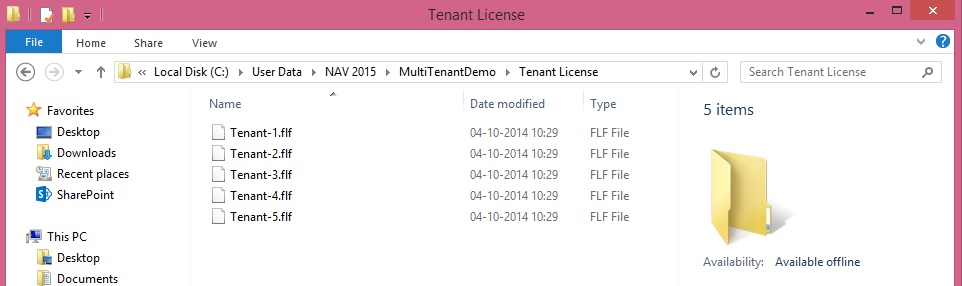
I have created the Folder and placed my Tenants License in this.
Copy the above Script and paste into the Microsoft Dynamics NAV 2015 Administration Shell.

Our License have now successfully uploaded to respective databases. As the message suggest we need to re-start the service so that new License comes into effect.
You can use above Script to Upload License to individual Tenants, License could be different or same depends how you discussed with Microsoft and purchased.
Assume we are implementing Distributor Management System. Where every Tenant is a different Business entity linked with the Parent Group.
In this case the Server & Network is provided by the Parent Group and other Business group will share information but they will use their specific License to use the system, doesn’t matter who pays for fee.
In any case we need to upload License to each database in Multitenancy.
Import-NAVServerLicense
Imports a license file into a Microsoft Dynamics NAV database.
Syntax
Parameter Set: __AllParameterSets
Import-NAVServerLicense [-ServerInstance] <String> [-Database <LicenseDatabase> ] [-Force] [-Tenant <TenantId> ] [-Confirm] [-WhatIf] [ <CommonParameters>]
Parameter Set: LicenseDataSet
Import-NAVServerLicense [-LicenseData] <Byte[]> [-Force] [-Confirm] [-WhatIf] [ <CommonParameters>]
Parameter Set: LicenseFileSet
Import-NAVServerLicense [-LicenseFile] <String> [-Force] [-Confirm] [-WhatIf] [ <CommonParameters>]
Detailed Description
Use the Import-NAVServerLicense cmdlet to import a license file into a Microsoft Dynamics NAV database. If the Microsoft Dynamics NAV Server account specified does not have access to the location where the license file is stored, an error results. Check the Event Log on the Microsoft Dynamics NAV Server computer to see what permissions are required.
After importing a new license, restart all Microsoft Dynamics NAV Server instances to activate the license for client users.
Parameters
-Database<LicenseDatabase>
Specifies the database into which to import the license file. The possible values are described in the following list:
Default = 0
Default; overrides the license file currently in use.
Master = 1
Forces the license file to be global.
NavDatabase = 2
Forces the license file to be local and stored in the Microsoft Dynamics NAV database that is used by the specified Microsoft Dynamics NAV Server instance.
Tenant = 3
Forces the license file to be local and stored in the Microsoft Dynamics NAV database that is used by the tenant that is specified in the Tenant parameter.
| Aliases | none |
| Required? | false |
| Position? | named |
| Default Value | none |
| Accept Pipeline Input? | false |
| Accept Wildcard Characters? | false |
-Force
Forces the command to run without asking for user confirmation.
| Aliases | none |
| Required? | false |
| Position? | named |
| Default Value | none |
| Accept Pipeline Input? | false |
| Accept Wildcard Characters? | false |
-LicenseData<Byte[]>
Specifies the content retrieved from the certificate file by using the Get-Content cmdlet. For more information, see the examples.
| Aliases | none |
| Required? | true |
| Position? | 2 |
| Default Value | none |
| Accept Pipeline Input? | false |
| Accept Wildcard Characters? | false |
-LicenseFile<String>
| Aliases | none |
| Required? | true |
| Position? | 2 |
| Default Value | none |
| Accept Pipeline Input? | false |
| Accept Wildcard Characters? | false |
-ServerInstance<String>
Specifies the name of a Microsoft Dynamics NAV Server instance. The default instance name is DynamicsNAV80. You can specify either the full name of an instance (such as MicrosoftDynamicsNavServer$myinstance) or the short name (such as myinstance).
| Aliases | none |
| Required? | true |
| Position? | 1 |
| Default Value | none |
| Accept Pipeline Input? | True (ByValue, ByPropertyName) |
| Accept Wildcard Characters? | false |
-Tenant<TenantId>
Specifies the ID of the tenant in which you want to import the license, such as Tenant1. This parameter is required unless the specified service instance is not configured to run multiple tenants.
| Aliases | Id |
| Required? | false |
| Position? | named |
| Default Value | none |
| Accept Pipeline Input? | True (ByPropertyName) |
| Accept Wildcard Characters? | false |
-Confirm
Prompts you for confirmation before running the cmdlet.
| Required? | false |
| Position? | named |
| Default Value | false |
| Accept Pipeline Input? | false |
| Accept Wildcard Characters? | false |
-WhatIf
Shows what would happen if the cmdlet runs. The cmdlet is not run.
| Required? | false |
| Position? | named |
| Default Value | false |
| Accept Pipeline Input? | false |
| Accept Wildcard Characters? | false |
<CommonParameters>
This cmdlet supports the common parameters: -Verbose, -Debug, -ErrorAction, -ErrorVariable, -OutBuffer, and -OutVariable.
Inputs
The input type is the type of the objects that you can pipe to the cmdlet.
- System.String
You can pipe a string that contains a Microsoft Dynamics NAV Server instance name to the cmdlet.
Outputs
The output type is the type of the objects that the cmdlet emits.
- None
This cmdlet does not generate any output.
Examples
This example imports a license file that is named "fin.flf" from the current directory into the default database.
C:\PS>Import-NAVServerLicense DynamicsNAV80 -LicenseData ([Byte[]]$(Get-Content -Path "fin.flf" -Encoding Byte))
This example imports a license file that is named "fin.flf" from the current directory into the local Microsoft Dynamics NAV database that is used by the MyInstance Microsoft Dynamics NAV Server instance.
C:\PS>Import-NAVServerLicense MyInstance -LicenseData ([Byte[]]$(Get-Content -Path "fin.flf" -Encoding Byte)) -Database NavDatabase
This example imports a license file that is named "fin.flf" from the current directory into the master database.
C:\PS>Import-NAVServerLicense 'MicrosoftDynamicsNavServer$MyInstance' -LicenseData ([Byte[]]$(Get-Content -Path "fin.flf" -Encoding Byte)) -Database Master
This example imports a license file that is named "fin.flf" from the current directory into the database that is used by the specified tenant, Tenant1.
C:\PS>Import-NAVServerLicense 'MicrosoftDynamicsNavServer$MyInstance' -LicenseData ([Byte[]]$(Get-Content -Path "fin.flf" -Encoding Byte)) -Database Tenant –Tenant Tenant1
Let import the license to the Tenants which we created in our earlier post.
If you missed previous post you can find it here. Adding Tenants to multitenancy Environment
I have created the Folder and placed my Tenants License in this.
Set-ExecutionPolicy unrestricted -Force
Import-Module 'C:\Program Files\Microsoft Dynamics NAV\80\Service\NavAdminTool.ps1'
Import-NAVServerLicense MTenantDemo -Tenant 'Tenant-1' -LicenseData ([Byte[]]$(Get-Content -Path "C:\User Data\NAV 2015\MultiTenantDemo\Tenant License\Tenant-1.flf" -Encoding Byte))
Import-NAVServerLicense MTenantDemo -Tenant 'Tenant-2' -LicenseData ([Byte[]]$(Get-Content -Path "C:\User Data\NAV 2015\MultiTenantDemo\Tenant License\Tenant-2.flf" -Encoding Byte))
Import-NAVServerLicense MTenantDemo -Tenant 'Tenant-3' -LicenseData ([Byte[]]$(Get-Content -Path "C:\User Data\NAV 2015\MultiTenantDemo\Tenant License\Tenant-3.flf" -Encoding Byte))
Import-NAVServerLicense MTenantDemo -Tenant 'Tenant-4' -LicenseData ([Byte[]]$(Get-Content -Path "C:\User Data\NAV 2015\MultiTenantDemo\Tenant License\Tenant-4.flf" -Encoding Byte))
Import-NAVServerLicense MTenantDemo -Tenant 'Tenant-5' -LicenseData ([Byte[]]$(Get-Content -Path "C:\User Data\NAV 2015\MultiTenantDemo\Tenant License\Tenant-5.flf" -Encoding Byte))
Copy the above Script and paste into the Microsoft Dynamics NAV 2015 Administration Shell.
Our License have now successfully uploaded to respective databases. As the message suggest we need to re-start the service so that new License comes into effect.
You can use above Script to Upload License to individual Tenants, License could be different or same depends how you discussed with Microsoft and purchased.
Subscribe to:
Posts (Atom)