Showing posts with label To. Show all posts

Wednesday, 29 June 2016

An Introduction to PowerShell – basics and how to define Variables

PowerShell is built into Windows, so there is no requirement of separate fee or licensing cost. In addition, different server products come with their own Power Shells, too, which expands the capability to do things you want using PowerShell.

For demo purpose I am using Windows PowerShell ISE.

PS-1

An introduction to scripts

Scripts in PowerShell are basically just text files with the special filename extension of ps1.

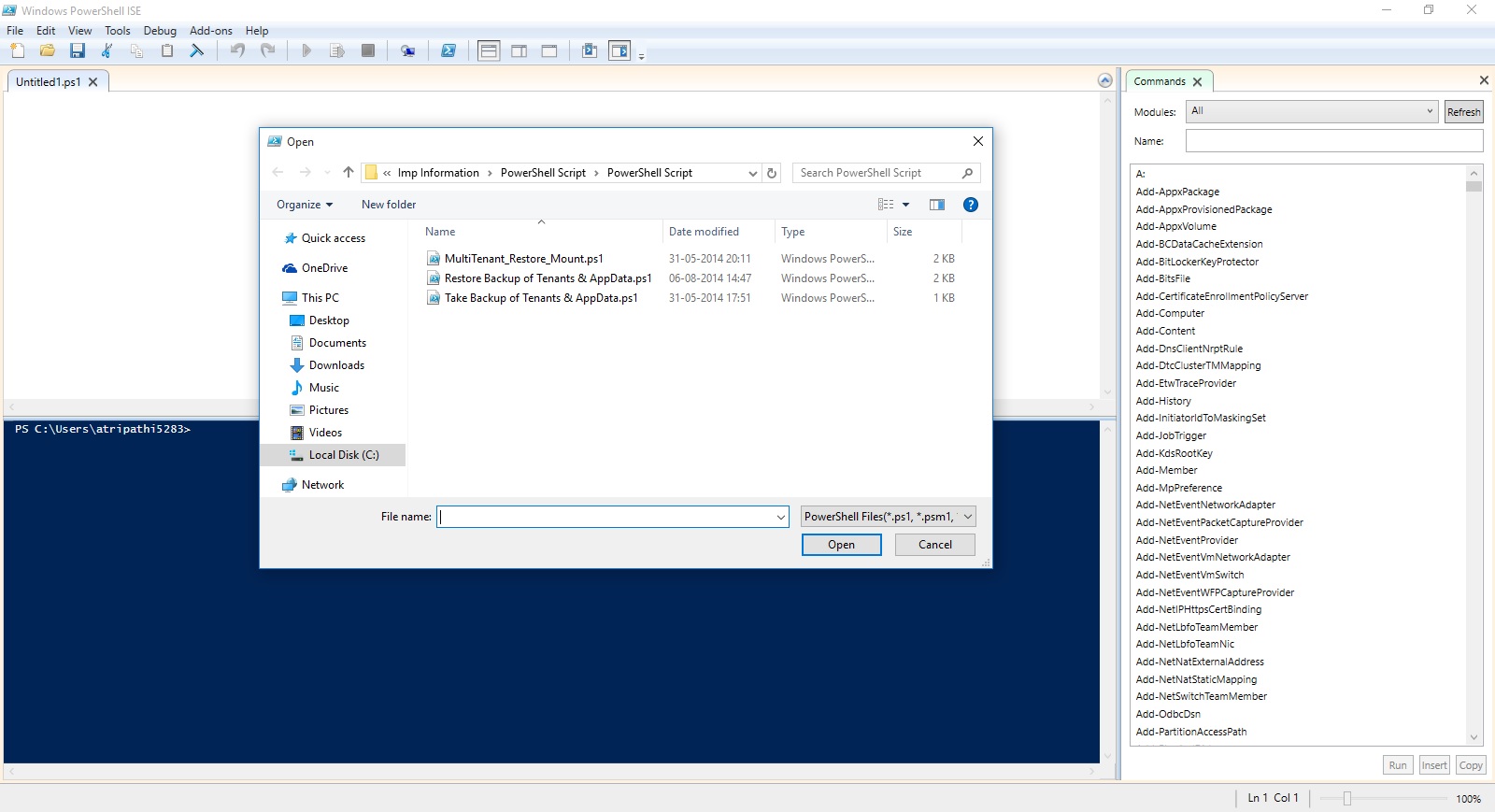
To create a script, you enter a series of PowerShell commands in a sequence in a new Notepad file or any text editor you like, and then save that file with extension as .ps1, where name of your file is a friendly description of your script with no spaces.


PS-2

How do I run my scripts?

To run a PowerShell script that you already have, you enter in a PowerShell window either:

The full path (folder and file name) of the script, like so: c:\powershell\myscript.ps1

Or

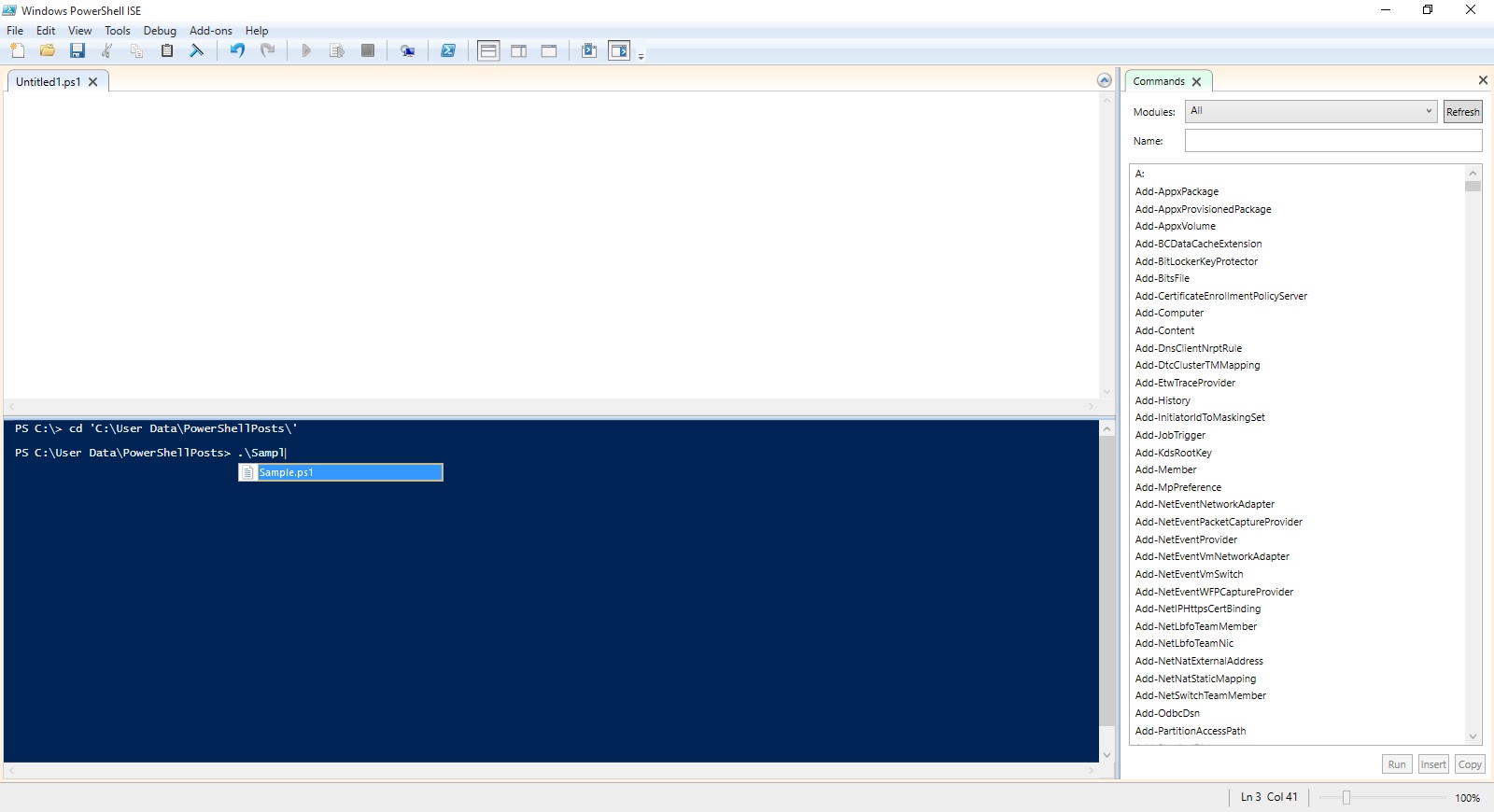
If your script is in the current directory the console is looking at, use a period and then a backslash, like this: .\myscrip.ps1

Other than this, there is nothing special needed for creating a script in PowerShell. You can simply add the commands you like.


PS-3

How do I define Variables?

In PowerShell, variables always have a dollar sign ($) prefixed before them.

Let us declare few variables right now:

$name = 'Ashwini'

$anynumber = 111074

$location = 'Ghaziabad'

$listofnumbers = 15,20,35,40


PS-4

If I want to define a variable with text as its value, I will require to add a single quote on either side of the text value.

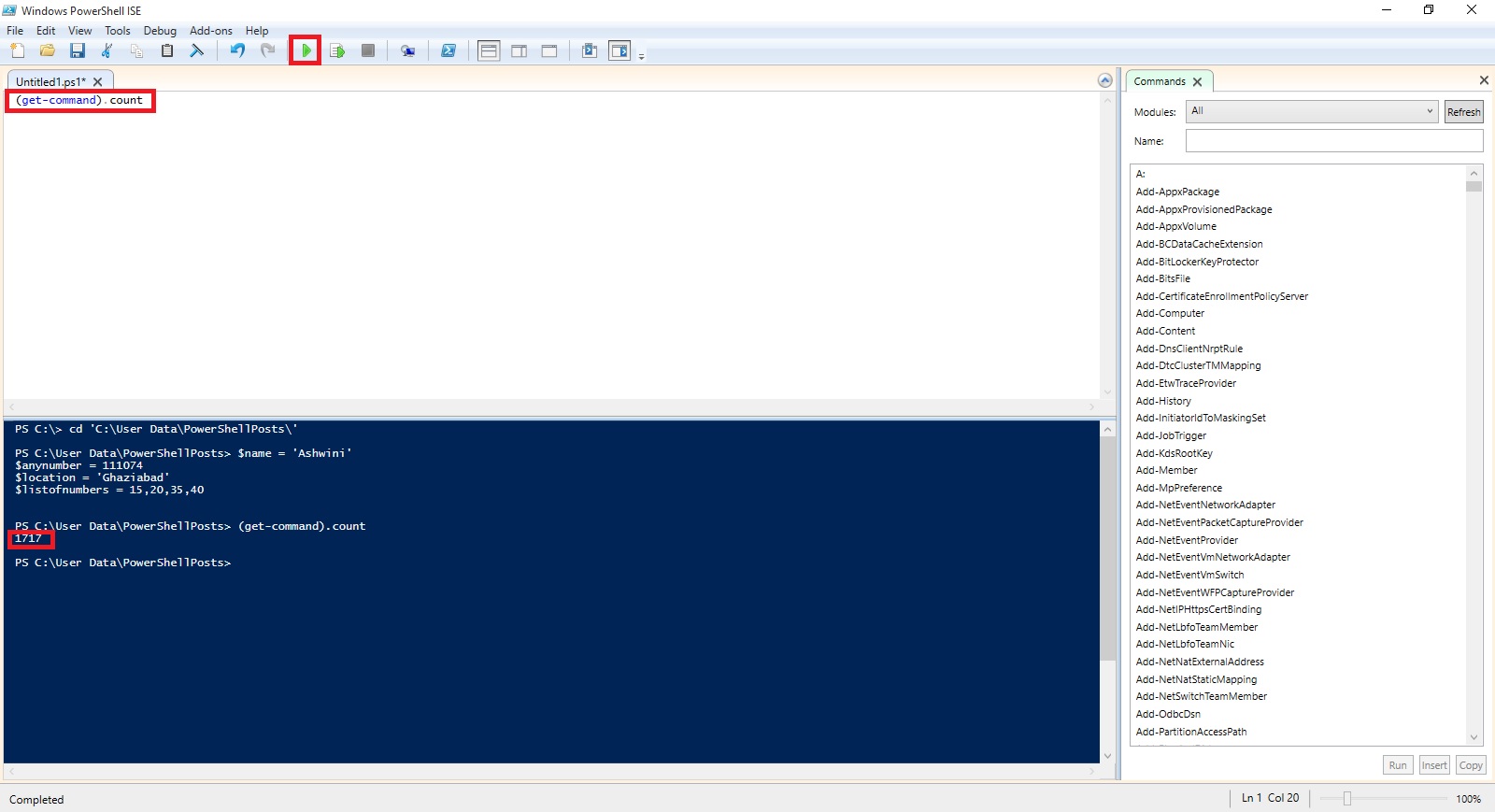
Let’s say we want to find out the total number of cmdlets available on the system, we can use:

(get-command).count


PS-5

Let's declare a variable to store that count in. We’ll call it

$numbersofcmdlets

We will store output in this variable of the (get-command).count .

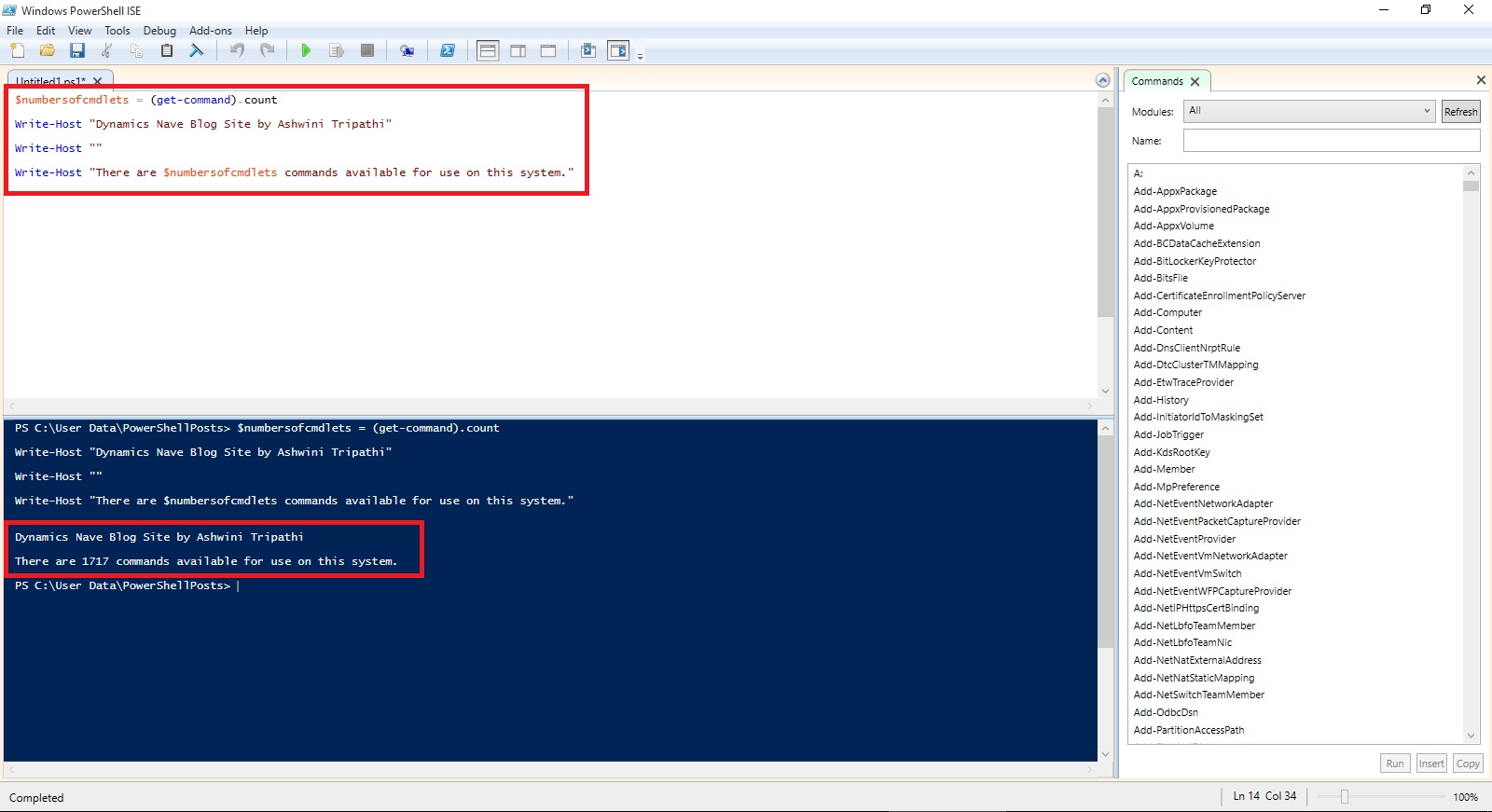
$numbersofcmdlets = (get-command).count

Now we can use this variable as part of something else.

For a simple example, let's look at the Write-Host cmdlet, which simply writes text to the screen of the machine hosting the PowerShell session. Write-Host has a lots of capabilities, but in its simplest form, you can just say:

Write-Host "Dynamics Nav Blog Site by Ashwini Tripathi"

You can integrate variables with Write-Host. You just call them with the dollar sign notation and work them right into your text.

For example, I can say:

Write-Host "There are $numbersofcmdlets commands available for use on this system."


PS-6

I will come up with more stuffs in my upcoming posts. 

Till then keep practicing and stay tuned for more details.


Monday, 18 April 2016

How to add Video Tile on Power BI Dashboard

Previously, a Video Tile released by BI supports YouTube videos. Video tiles allow you to customize your dashboard and add a bit of personal look.

Now the video tile supports Vimeo videos too.

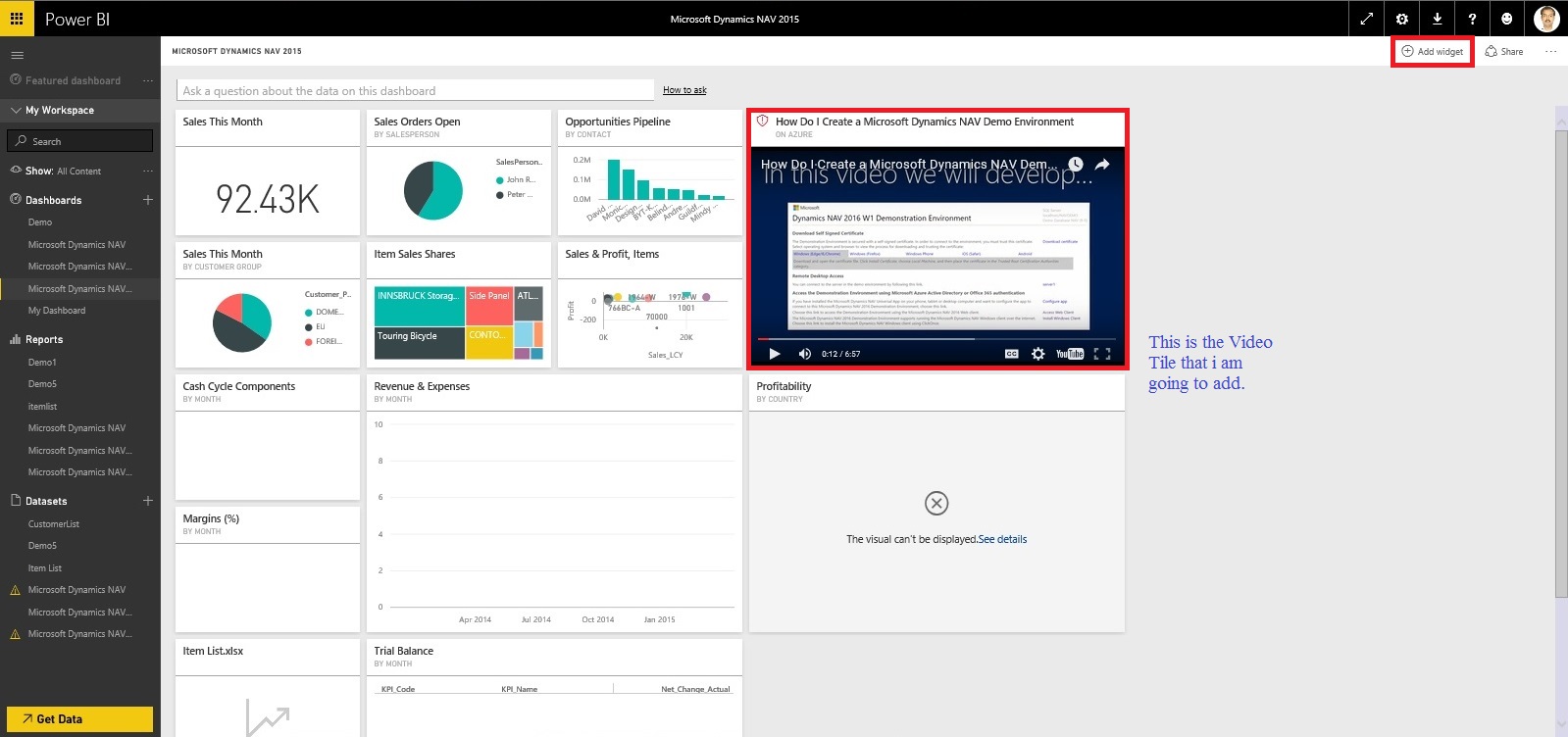
Add a video tile by selecting Add widget from the top right of the dashboard.

PBI Video - 1

Select Video from Add Tile window.

PBI Video - 2

Press Next Button.

PBI Video - 3

Provide your Title and Subtitle for the Video Tile.

Provide your YouTube or Vimeo video URL.

If required provide custom Link and other properties.

Select Apply to complete your action.

Vimeo URLs come in several different formats this supports most, but not all of these formats. In case your URL doesn’t works try for next format.

I have posted several posts related to Power BI, you can find them using below Links.

Microsoft Power BI – Part – I

Introduction to Power BI and Creating Report from Excel Data, Local Files.

Microsoft Power BI – Part – II

Introduction to few Features of Power BI

Microsoft Power BI – Part – III

Power BI Desktop, Creating Dataset & Reports from In Premise Database installation

Microsoft Power BI – Part – IV

Power BI Gateway usage

Microsoft Power BI – Part – V

Scheduling Refresh of Dataset & Report created using In Premise Database

Microsoft Power BI – Part – VI

Power BI Content Pack

Microsoft Power BI – Part – VII

Power BI Mobile App

Microsoft Power BI – Part – VIII

Power BI Content Pack

Microsoft Power BI – Part – IX

Power BI Publisher for Excel

Microsoft Power BI – Part – X

Analyse in Excel (preview)


Tuesday, 3 November 2015

Configuring SSL to Secure the Connection to Microsoft Dynamics NAV Web Client

It is always recommend that you secure Microsoft Dynamics NAV data that is transmitted over the Internet by enabling Secure Sockets Layer (SSL) on the connection to Microsoft Dynamics NAV Web client.

Enabling SSL on a website requires that an SSL certificate is installed on the web server. An SSL certificate is a small file that the web server uses to prove its identity and establish a trusted connection with the browser that is trying to access Microsoft Dynamics NAV Web client.

When a browser connects to the Microsoft Dynamics NAV Web client, the web server replies by sending its certificate to the browser. This certificate contains the web server's public encryption key and the name of the authority that granted the certificate. The browser verifies the certificate using the authority's public key.

Note You can configure SSL for the Microsoft Dynamics NAV Web client when you install the Microsoft Dynamics NAV Web Server components.

Obtaining an SSL Certificate

In a production environment, you should obtain an SSL certificate from a certification authority. Some large organizations may have their own certification authorities, and other organizations can request a certificate from a third-party organization. In a test environment or development environment, you can create your own self-signed certificate.

To create a self-signed SSL certificate

Open Internet Information Services (IIS) Manager, on the Start menu, choose Administrative Tools, and then choose Internet Information Service (IIS) Manager.
IIS-1

  • In the Connections pane, choose the top-level node for the server.

  • On the Home page, under IIS, choose Server Certificates, and then in the Actions pane, choose Open Feature.


IIS-2

  • On the Server Certificates page, choose Create Self-Signed Certificate.

  • In the Specify Friendly Name dialog box, type a brief name for the certificate, and then choose the OK button.


IIS-3

The new certificate appears on the Server Certificate page.
IIS-4

Adding an HTTPS Binding That Uses the Certificate on the Microsoft Dynamics NAV Web Client Site

After you get the certificate, you add a binding to the https protocol on the website. When you add the binding, you associate it with the certificate.

To add an https binding with the certificate to the website

  • Open Internet Information Services (IIS) Manager.

  • In the Connections pane, expand the Sites node, and then choose the Microsoft Dynamics NAV Web client site to which you want to add the binding.


By default, the site has the name Microsoft Dynamics NAV 2016 Web Client.

  • In the Actions pane, choose Bindings.


IIS-5

  • In the Site Bindings dialog box, choose Add.

  • In the Add Site Binding dialog box, set the Type field to https.


IIS-6

You can use the default port 443 or change it to another port. If you change it to another port, you will have to provide the port number in the URL when you try to open the client.

  • Set the SSL certificate field to the certificate that you obtained or created for the site.


IIS-7

  • Choose the OK button, and then choose the Close button.


Redirecting HTTP to HTTPS (Optional)

To ensure that users always access the site that is secured with SSL, you can automatically redirect HTTP requests to HTTPS. This means that users do not have to explicitly include https in the URL in the browser.

For example, the nonsecure URL of the Microsoft Dynamics NAV Web client could be
http://mywebclient:8080/DynamicsNAV90/WebClient

The secure URL could be
https://MyWebclient:443/DynamicsNAV90/WebClient

If a user types
http://MyWebclient:8080/DynamicsNAV90/WebClient,

the browser automatically redirects to
https://MyWebclient:443/DynamicsNAV90/WebClient


There are different ways to redirect HTTP requests to HTTPS.

The following procedure describes how to redirect HTTP requests to HTTPS by installing the Microsoft Application Request Routing for IIS 7 and modifying the web.config file for the Microsoft Dynamics NAV Web client.

To redirect HTTP to HTTPS

The web.config file is located in the physical path of the web application on IIS. By default, the path is
%systemroot%\inetpub\wwwroot\[VirtualDirectoryName]\WebClient.

For example, the folder for the default Microsoft Dynamics NAV Web client application is
%systemroot%\inetpub\wwwroot\DynamicsNAV90\WebClient.


  • In the <system.webServer> element, add the following elements.


<rewrite>

<rules>

<rule name="Redirect to HTTPS">

<match url="(.*)" />

<conditions>

<add input="{HTTPS}" pattern="off" ignoreCase="true" />

</conditions>

<action type="Redirect" url="https://{SERVER_NAME}/{R:1}" redirectType="SeeOther" />

</rule>

</rules>

</rewrite>


  • Save the web.config file.


Wednesday, 7 October 2015

Record Permissions and Apply Permissions Sets to User Groups in Navision 2016

Administrators can record new permission sets in Microsoft Dynamics NAV 2016.

Recording permissions is based on the code coverage functionality.

You can access the various windows and activities in the Microsoft Dynamics NAV Windows client or the Microsoft Dynamics NAV Web client that you want users with this permission set to access.

You must carry out the tasks that you want to record permissions for. Then, you can apply the new permission set to a group of users.

A user group is a combination of roles and users. If you want to change permissions for the user group, the changes are automatically applied to the users who are members of the group.

To help you manage permissions in Microsoft Dynamics NAV for your company, you can set up one or more user groups, add permissions sets to the groups, and then add users to the groups. You can add more than one permission set to a user group.

In the User Groups window, you can set up user groups, add and remove permissions, and you can apply changes to all or specific user groups.
Permission-1

Permission-2

Permission-3

Permission-4

Permission-5
If the default permission sets that are provided with Microsoft Dynamics NAV are not sufficient or not appropriate for your organization, then you can create new permission sets. If the individual object permissions that define a permission set are not adequate, then you can modify a permission set.

You can create a permission set manually, or you can record permissions by navigating in the application.
Permission-6

Permission-7

Permission-8
This starts a recording process that is based on the code coverage functionality in Microsoft Dynamics NAV. You can now access the various windows and activities in the Microsoft Dynamics NAV Windows client or the Microsoft Dynamics NAV Web client that you want users with this permission set to access. You must carry out the tasks that you want to record permissions for.

When you want to finish the recording, return to the Permissions window, and then, on the Actions tab, choose Stop.

Choose Yes to add the recorded permissions to the new permission set, or choose No to cancel.

If you choose Yes, the objects that you accessed are added to the window. In Microsoft Dynamics NAV 2016, only the objects are recorded, so you must specify if users must be able to insert, modify, or delete records in the recorded tables.

Saturday, 3 October 2015

Add Excel Sheet/Table to the PowerPivot Data Model

Download the Excel file from the link provided in previous post.

Import data using copy and paste from Excel sheet or other source for PowerPivot Data Model.

Open the Workbook:

ExcelData-3

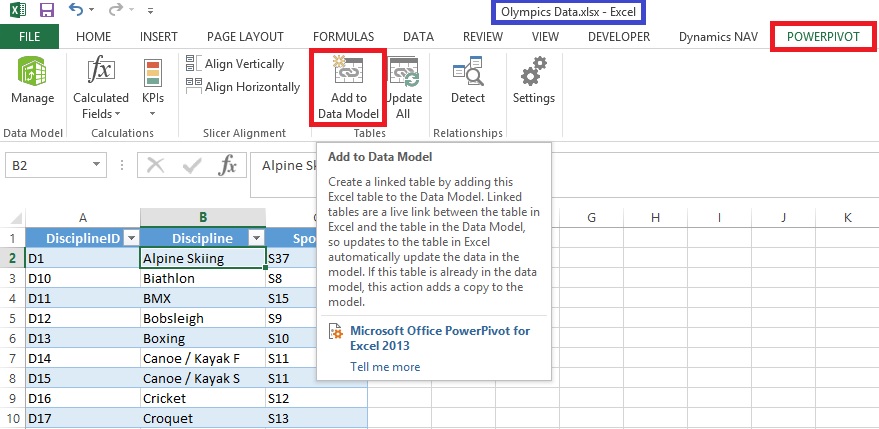
Select sheet one by one and Add to Data model of PowerPivot.

ExcelData-4

Make sure all Table/Sheet is added to Data Model of PowerPivot.

I have create a sample Excel File for you which you can down load from the Shared Path using link: http://1drv.ms/1GpZFd4

This file have couple of sheets having data related to Olympics which I have compiled from MS Office support site.

You can find the link on the Menu of my blogsite too to access the shared files.

I will be using this file for couple of walkthrough in my upcoming posts.

Friday, 2 October 2015

Add Slicers to PivotTables in PowerPivot

Recall from my earlier post Creating My First Report using PowerPivot in which we created a Items Vs Customer Sales matrix report.

I am going to use same report to demonstrate how we can add slicer to this report.

Slicers are one-click filtering controls that narrow the portion of a data set shown in PivotTables and PivotCharts. Slicers can be used in both Microsoft Excel workbooks and PowerPivot workbooks, to interactively filter and analyze data.
PowerPivot-30

Open the report we created in our previous post.

From Insert Tab select Slicer in the ribbon.
PowerPivot-31

Choose the source Connection/Data model and respond Open.

Select the Customer Table.

Select the Country/Region Code field and OK.
PowerPivot-32

A Slicer will be added to the sheet.

Re-size to fit and drag the Slicer to position at desired location on sheet.

You can give desired Caption to your Slicer by editing the Slicer Caption.

Most important is to select the pivot table on which this Slicer will operate.

Select Report Connection, and from preceding window select the PivotTable.
PowerPivot-33
Above is the screenshot with applied filter on Country/Region Code = DE.

Stay tuned to know more options, I will come up with more details in my upcoming posts.

Till then keep practicing.

Wednesday, 30 September 2015

Add relationships to Data Model in PowerPivot

You can systematically create table relationships for all new tables that you import. If you’re sharing the workbook with colleagues, having predefined relationships will be appreciated if they don’t know the data as well as you do.

When creating relationships manually, you will work with two tables at a time.

For each table, you’ll choose columns that tell Excel how to look up/ join related rows in another table.

Recall from my previous posts I will be continuing the example from using same Data Model

PowerPivot Creating a Data Model in Excel 2013

Adding more tables to the Data Model using Existing Connection – In PowerPivot

With your Data model sheet opened
PowerPivot-14
Click on Diagram View in Upper Right Side as highlighted in above screenshot.

Window will switch to Diagram View as shown in above screenshot, showing all the tables available in the Data model.

Click No_ in Customer Table and Drag to Item Ledger Entry Table and release the mouse button pointing to Source No_ field, you will see the Link is Established between these two tables showing the Link via Arrow line.

Repeat above step again between Item->No_ and Item Ledger Entry -> Item No_ fields.

Now we have Established connection between these three tables Customer, Item & Item Ledger Entry.

I will come up with more option on this topic in my next post, till then start practicing and stay tuned.

Sunday, 27 September 2015

How to Use the Jet Report Scheduler

Overview

The Jet Scheduler is a powerful tool that allows users to schedule reports to be automatically run by the Windows Task Scheduler. The user can also control where the output file is saved to, if the report should be emailed once it has been generated, and the output format of the report.

Creating a New Scheduled Task

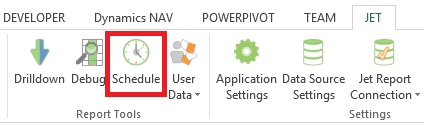
To set up a scheduled report, open the report in Excel, click the Jet ribbon, and click the Schedule button.

JetSchedule-1

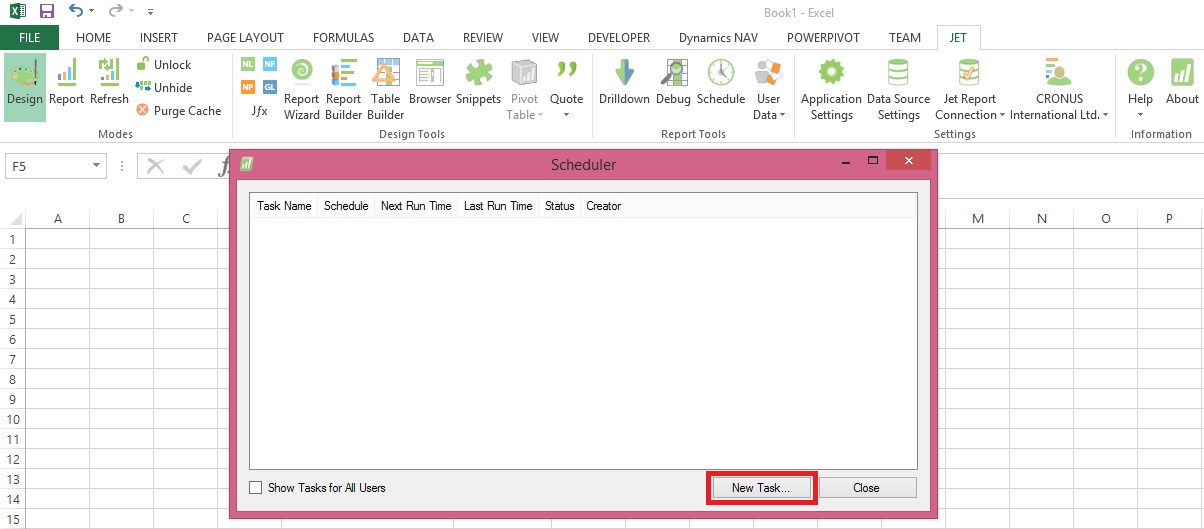
Click the New Task... button to schedule a new task.

JetSchedule-2

The Scheduled Task window will now appear.

Reports Tab

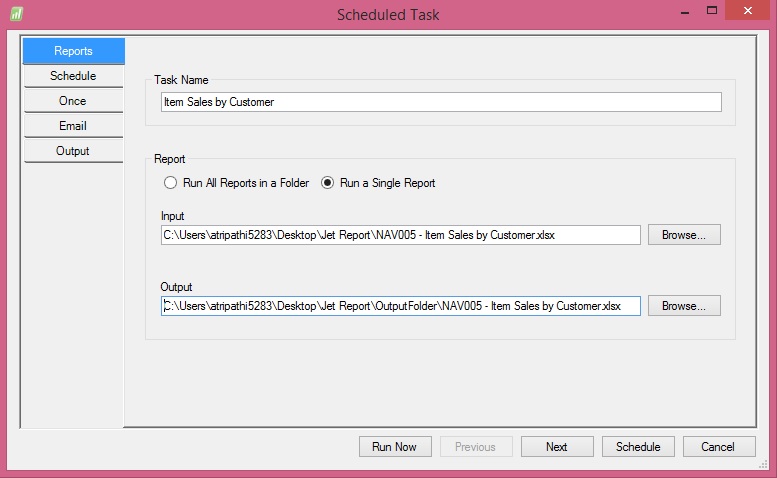
JetSchedule-3

The Reports tab contains general information about the scheduled task.

  • Task Name: This represents the name of the task as it will appear in the Scheduled Task window to the user.

  • Run All Reports in a Folder: This button will enable the user to schedule all Jet Reports in a full to be run

  • Run a Single Report: This button will enable the user to schedule a single Jet Report to be run

  • Input: This represents the folder and file name of the report that will be run

  • Output: This represents the folder and file name of where the finished report will be saved


Schedule Tab

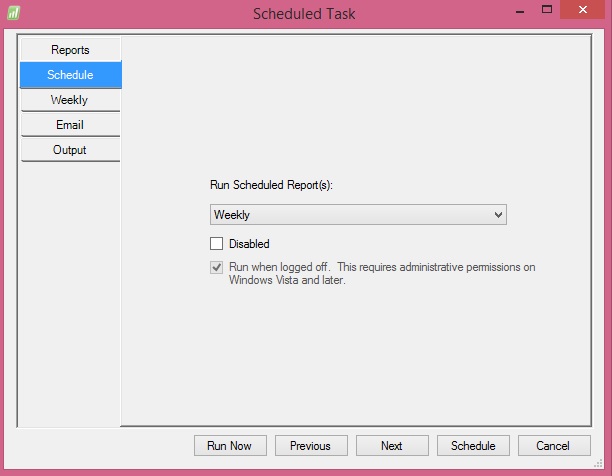
JetSchedule-4

This tab will define the frequency of how often the report will be run as well as if the task is currently disabled and if the report should be run when the user is logged off.

The available options for the frequency are:

  • Once: The report will only be run one time

  • Daily: The report will be run every day (it is possible to set on the next tab the number of days to wait between runs)

  • Weekly: The report will be run every week (it is possible to set on the next tab the days of the week for the report to be run on)

  • Monthly: The report will be run every month (it is possible to set on the next tab the months for the report to run on and the days of the month for the report to be run on)

  • When Idle: The report will run every time that the computer goes into idle mode

  • At Startup: The report will be run each time that the computer is turned on

  • At Logon: The report will be run each time that the user logs on to the computer


Frequency Tab

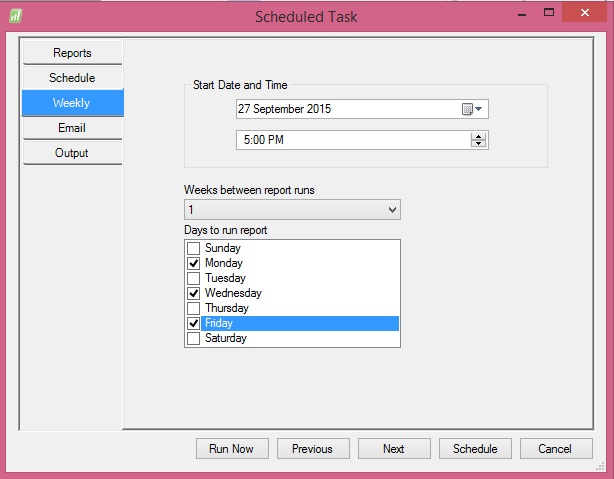
JetSchedule-5

The name of this tab will change depending on the frequency specified on the Schedule tab.

In the screenshot above a Weekly frequency has been specified.

  • Start Date and Time: This represents the first date that the report will run and the time that it will run for this and subsequent schedules

  • Weeks between report runs: This specifies how many weeks the Scheduler will wait between report runs before running the report again

  • Days to run report: This represents the days of the week that the report is scheduled to run on


Email Tab
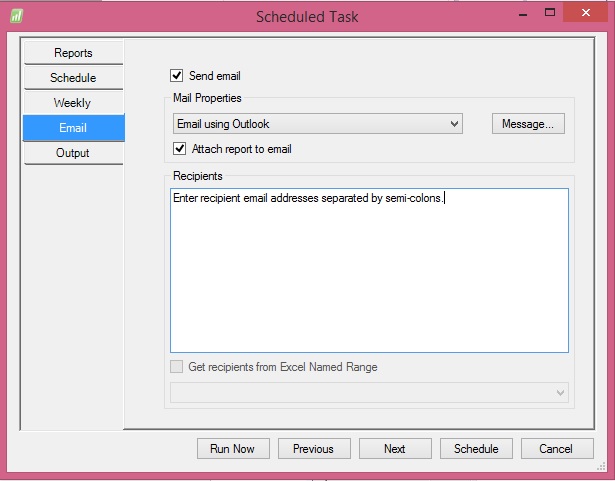
JetSchedule-6
The Email tab allows the user to define who the report will be sent to if emailing is desired.

  • Send email: If this box is checked it will enable the report to be emailed to recipients

  • Mail properties: This dropdown will allow the user to specify whether the report will be emailed using Outlook or a generic SMTP protocol. SMTP must be configured in the Jet Essentials Application Settings in order for it to be used.

  • Message: This allows the user to specify a custom subject or body to be sent as part of the email

  • Attach report to email: If this box is checked the report will be attached to the email. If the box is unchecked the report will not be attached. This can be used as a type of notification when used in conjunction with the subject and body of the email to allow a user to know that the report has been run

  • Recipients: Email addresses will be specified here for all recipients of the report. Email addresses should be separated by a semi-colon.

  • Get recipients from Excel Named Range: It is possible to also define the email addresses in the report itself and then assign an Excel named range to the cell(s). If there are named ranges in the report then they will appear in the dropdown below the checkbox. The Output tab allows the user to define how the file should be saved once it is finished running. This tab also enabled the user to turn on logging to troubleshoot errors with the Scheduler process as well as use Batch File Generation for the reports.


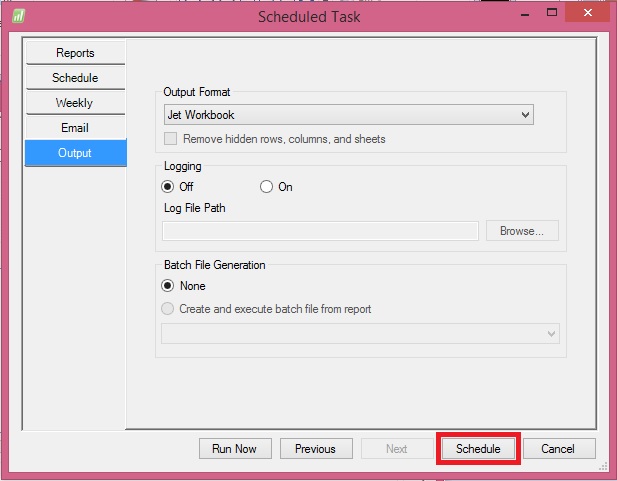
Output Tab
The Output tab allows the user to define how the file should be saved once it is finished running. This tab also enabled the user to turn on logging to troubleshoot errors with the Scheduler process as well as use Batch File Generation for the reports.

JetSchedule-7

  • Output Format: This dropdown list will allow the user to define the format of the finished report. The available options are:

    • Jet Workbook: This will save the report as a normal Excel file with all Jet Reports functions still in the report

    • Values Only Workbook: This will save the report as an Excel file with all Jet Reports functions removed. The recipient would not be able to refresh the report as it will be a static Excel file

    • Web Page: This will save the report as a HTML file with a single sheet. This should be used when there is a single sheet in the report

    • Web Page by Sheet: This will save the report as a HTML file with multiple sheets embedded in it. This should be used when there are multiple sheets in a report

    • PDF: This will save the report as a PDF file (if your version of Excel supports that ability - Excel 2007 and higher)


Remain tuned for more details, I will come up with more details and features in my upcoming posts.

Saturday, 29 August 2015

How to: Test the ADCS Connection

The following procedure demonstrates how to use Windows Services and Telnet to test your Automated Data Capture System connection.

Before you can begin, you must install the ADCS component as part of a customized installation of Microsoft Dynamics NAV. For more information, see my earlier post Installing ADCS

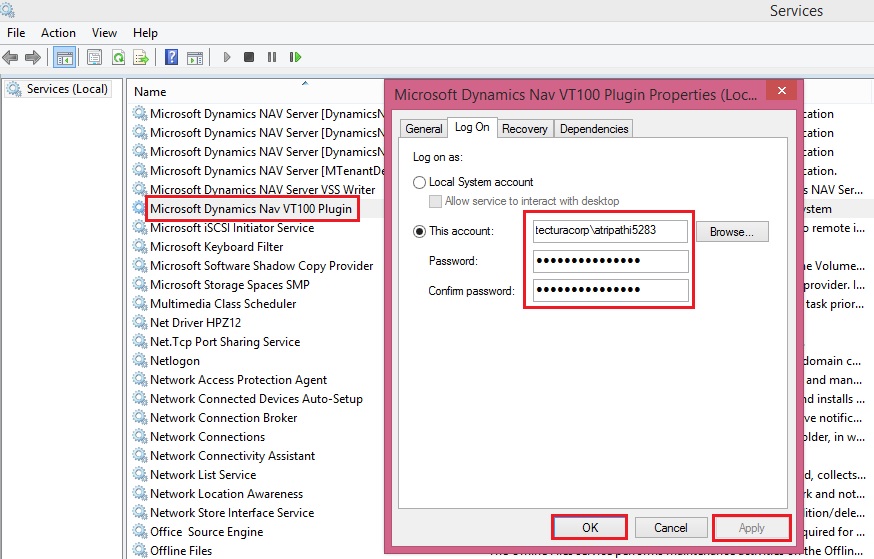
To configure and start the Microsoft Dynamics NAV VT100 Plugin service

From the Windows Start menu, in the Start Search box, enter services.msc, and then press the Enter key. The Services window opens.

Right-click the Microsoft Dynamics NAV VT100Plugin service, and then choose Properties.

To specify the user account that the service can use to log on, choose the Log On tab.
ADCS-11
To specify an account, choose This account, choose Browse, and then specify a user account in the Select User dialog box. When you are finished, choose the OK button. The format is as follows:

<Domain>\<Windows User ID>

Note: To complete testing, you must also add the same user to Microsoft Dynamics NAV, with an appropriate permission set.

Type the password for the user account in Password and in Confirm password, and then choose the OK button.

On the General tab, choose Start.

To verify that the service is running

Start the Windows Event Viewer. From the Windows Start menu, in the Start Search box, enter eventvwr.msc, and then press the Enter key.

In the Windows Logs console tree, choose Application, and then locate event information for the Microsoft Dynamics NAV VT100 Plugin.
ADCS-12
Testing Your Connection

In the following procedure, you will open a terminal connection and use HyperTerminal to simulate using handheld devices. HyperTerminal is a program that you can use to connect to other computers, Telnet sites, bulletin board systems (BBSs), online services, and host computers. HyperTerminal connections are made using a modem, a null modem cable (used to emulate modem communication), or an Ethernet connection.

Note: HyperTerminal is no longer included with Windows. You can usually find a free downloadable version on the Internet.

To test your ADCS connection

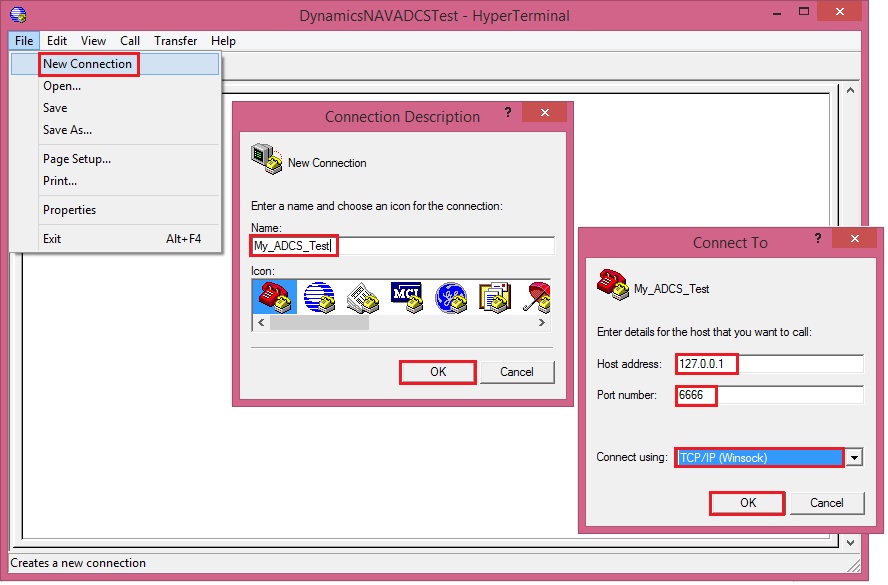
Start your HyperTerminal application.

Enter a name for the connection. Choose the OK button.

In the Connect Using list, select TCP/IP (Winsock).

The following table describes the details of a local installation on one machine.


DetailDescriptionExample
Host AddressIP address of the machine that is running the VT100 Plug-in service.localhost
Port NumberPort number that the VT100 Plug-in is listening on.6666

Choose the OK button. The HyperTerminal window opens.
ADCS-13
Enter a user ID and password. Press Enter after every step.
ADCS-14
Select a warehouse activity option. For example, enter 1 in the Choose field if you want to simulate working with pick documents.
ADCS-15
You can review the data about warehouse picks in Microsoft Dynamics NAV. For example, you can use the data in the CRONUS International Ltd. demonstration database to send information from and to Microsoft Dynamics NAV.

Note: To see the interaction between Microsoft Dynamics NAV and ADCS, in CRONUS International Ltd., you can use warehouse activities that are located in the White warehouse. It is preconfigured to use ADCS.

How to: Configure ADCS Options

Before you can work with Automated Data Capture Systems (ADCS), you have to configure Microsoft Dynamics NAV by modifying the VT100Plugin configuration file.

Important: Modification of the configuration file should only be performed by a system administrator.

To modify and update the ADCS configuration file for the terminal listener

Locate and open the NavisionVT100Plugin.exe.config configuration file. It is typically located in the following location: C:\Program Files (x86)\Microsoft Dynamics NAV\80\Automated Data Capture System.
ADCS-9
For the Terminal element, update the attributes in the configuration file using attributes as described in the following table. You specify the attribute values in quotation marks.


AttributeDescription
listenIPRequired. IP address that specifies where to listen for terminal connections.
listenPortRequired. Positive integer that specifies the port number to listen for terminal connections.
stylesheetRequired. Path to transformation style sheet, which transforms warehouse functions to terminal keycodes. Two style sheets are provided with the ADCS installation.
screenLinesOptional. Positive integer that specifies the number of screen lines. The default is 5.
screenWidthOptional. Positive integer that specifies the screen width. The default is 30.
codePageOptional. Positive integer that specifies the codepage. The default is the system codepage defined in HKey_Local_Machine\SYSTEM\CurrentControlSet\Control\Nls\CodePage\ACP.
terminalTimeoutOptional. Positive integer that specifies the terminal time-out in milliseconds. The default is 65000 and cannot be fewer than 6000.
debugDirectoryOptional. Output directory for debug data.

For the Endpoints element, update the attributes in the configuration file and modify an endpoint to support your processes. You can also add more endpoints. The following table provides some options.


AttributeDescription
defaultTypeOptional. defaultType is an attribute of the Endpoints element. It specifies what type of endpoint to use when no type is specified, if you want to customize it. The default is the NavEndpoint type.
nameRequired. Endpoint name. The name must be unique.
urlRequired. Endpoint URL address.

Note: This attribute does not have to be included if the clientEndpointName attribute is specified.
typeOptional. Fully qualified name of a non-default endpoint.
clientEndpointNameOptional. Windows Communications Foundation client endpoint configuration name. If specified, a WCF configuration with the specified name must exist.

The following example describes the XML for a Terminal element and the Endpoints element. It adds one endpoint for Microsoft Dynamics NAV.

In my case the config file will be as below:
ADCS-10
======================================================================

<?xml version="1.0"?>

<configuration>

<configSections>

<section name="VT100" type="Microsoft.Dynamics.Nav.Adcs.Configuration.VT100ConfigurationSection, Microsoft.Dynamics.Nav.VT100Plugin"/>

</configSections>

<VT100>

<Warehouse>

<Endpoints>

<add name="NavWSEndpoint" url="http://indel-axt5283n1.tecturacorp.net:8047/DynamicsNAV80/WS/CRONUS%20International%20Ltd./Codeunit/ADCS"/>

<!-- Azure deployment example: -->

<!--<add name="NavWSEndpoint" url="https://CloudService:7047/DynamicsNAV/WS/CRONUS%20International%20Ltd/Codeunit/ADCS" UserName="NavUser" Password="NavUserPassword" />-->

</Endpoints>

</Warehouse>

<Terminal listenPort="6666" listenIP="127.0.0.1" stylesheet="VT100_W2k_and_OtherClients.xsl"/>

</VT100>

<startup><supportedRuntime version="v4.0" sku=".NETFramework,Version=v4.5"/></startup></configuration>

=============================================================================

Security

By default, the NavEndpoint uses the security settings that you have specified for web services generally. You can configure additional security by changing the configuration of Microsoft Dynamics NAV Server and matching that configuration in the VT100Plugin configuration service.

How to: Enable Web Services for ADCS

To use Automated Data Capture System, you must enable the ADCS web service.

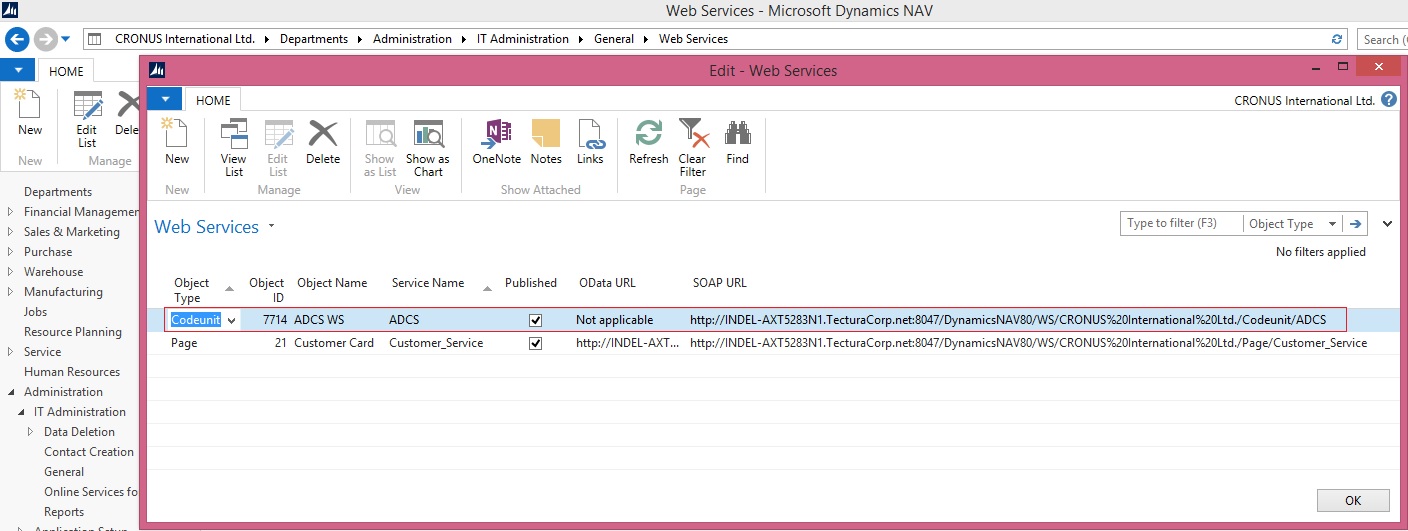
To enable and publish the ADCS web service

Start the RoleTailored client.

In the Search box, enter Web Services, and then choose the related link.

On the Home tab, choose New.

In the Web Services window, enter the following information on a new line:


FieldValue
Object TypeCodeunit
Object ID7714
Service NameADCS

Important: It is required that you name the service ADCS.

Select the Published check box.

Choose the OK button.
ADCS-7
To verify that the web service has been published
In a web browser window, enter a URL in the following format: http://<web services path>/Services. The following example demonstrates the results.

In my case:
http://indel-axt5283n1.tecturacorp.net:8047/DynamicsNAV80/WS/Services

You see the following XML information if the ADCS web service is published.
ADCS-8
To verify that the codeunit is performing as expected, enter a URL in the following format: http://<web services path>/Codeunit/<Service Name>.

http://indel-axt5283n1.tecturacorp.net:8047/DynamicsNAV80/WS/CRONUS%20International%20Ltd./Codeunit/ADCS

Information about the ADCS web service is displayed.

How to: Add Users for ADCS

You can add any user as a user of an Automated Data Capture System (ADCS). When you do this, the user must also provide a password. Optionally, you can also provide a connection that identifies the ADCS user as a warehouse employee. The ADCS user password can be different from the Windows logon password of the user.

To add an ADCS user

In the Search box, enter ADCS Users, and then choose the related link.

On the Home tab, choose New to add a new user.

In the Name field, enter a name for the user. The name cannot contain more than 20 characters, including spaces.

In the Password field, enter a password. The password is masked.
ADCS-5
To indicate that a warehouse employee is an ADCS user

In the Search box, enter Warehouse Employees, and then choose the related link.

If needed, add a new warehouse employee

On the Home tab, in the Manage group, choose Edit List.

Select a warehouse employee from the list. In the ADCS User field, choose the drop-down arrow, and then select the name of an ADCS user from the list.

Note : The default warehouse for the employee should be one that uses ADCS
ADCS-6

Friday, 28 August 2015

How to: Install a Windows Client Control Add-in Assembly

Microsoft Dynamics NAV Windows client control add-ins are provided in one or more Microsoft Framework .NET-based assemblies, which are .dll files. Control add-in assemblies must be installed on the following computers:

  • Computers that are running the Microsoft Dynamics NAV Windows client. Any Microsoft Dynamics NAV Windows client instance that will use the control add-ins, must be installed with the control add-in assemblies. Control add-in assemblies are not installed with the default Microsoft Dynamics NAV Windows client installation.

  • Computer that is running the Microsoft Dynamics NAV Development Environment. After a control add-in is installed, you use the development environment to register the control add-in the Client Add-in table in the Microsoft Dynamics NAV database and set it up on pages.


Optionally, if a control add-in has the same name as the assembly, you can install the assembly on the computer that is running Microsoft Dynamics NAV Server instead of the client computer.

To install control add-in assemblies on the Microsoft Dynamics NAV Windows client

  • If needed, install the Microsoft Dynamics NAV Windows client on the computer.

  • On the computer that is running the Microsoft Dynamics NAV Windows client, copy the assemblies that contain the control add-ins to the Add-ins folder of the Microsoft Dynamics NAV Windows client installation.

    • By default, the path of this folder is C:\Program Files (x86)\Microsoft Dynamics NAV\80\RoleTailored Client\Add-ins.


You can also include assemblies in a subfolder of the Add-ins folder. This can be useful if you have multiple assemblies and dependencies.

To install control add-in assemblies on the development environment computer

  • If needed, install the development environment on the computer.

  • On the computer that is running the development environment, create a folder named Add-in in the development environment installation folder.

    • By default, the path of this folder is C:\Program Files\Microsoft Dynamics NAV\80\Classic. If the Add-in folder already exists, then ignore this step.


  • Copy the assemblies that contain the control add-ins to the Add-ins folder.


You can also include assemblies in a subfolder of the Add-ins folder. This can be useful if you have multiple assemblies and dependencies.

Installing Control Add-ins on Microsoft Dynamics Server for Automatic Deployment

If a control add-in has the same name as the assembly, then you can install the assembly on computer that is running Microsoft Dynamics NAV Server. When an operation from the client requires the control add-in, Microsoft Dynamics NAV Server automatically deploys the assembly to a temporary folder on the client computer.

For example, if Microsoft Dynamics NAV Windows client opens a page that contains a control add-in, Microsoft Dynamics NAV Server will find the control add-in assembly by name in the Add-ins folder. Then, it deploys the assembly to the client computer in the %TEMP%\Microsoft Dynamics NAV\Add-Ins folder of the user who is running the client. The deployed assembly will be then be used whenever the page is opened.

Similarly, if the development environment requires a control add-in, for example, when you compile an object, then the control add-in assembly will be deployed by the Microsoft Dynamics NAV Server to the local temporary folder for the current user on the computer that is running the development environment.

To be deployed, an assembly must comply with the following Microsoft Dynamics NAV Server configuration settings: Chunk Size, Max Upload Size, and Prohibited File Types.

If the control add-in assembly is updated and its version number changes, Microsoft Dynamics NAV Server will deploy the updated assembly to the client computer the next time that the client requests the assembly. The updated assembly is put in a subfolder of the %TEMP%\Microsoft Dynamics NAV\Add-Ins folder, where the subfolder has the assembly's version number as its name. This implementation means that you do have to remove the older versions of assemblies that are stored on the client computer.

Before Microsoft Dynamics NAV Server deploys an assembly to a client, the client looks for the assembly in the local Add-ins folder (for example, C:\Program Files (x86)\Microsoft Dynamics NAV\80\RoleTailored Client\Add-ins). If the assembly is not found, then the client will request the assembly from Microsoft Dynamics NAV Server.

To install the control add-in on Microsoft Dynamics NAV Server

  • On the computer that is running the Microsoft Dynamics NAV Server, copy the assembly that contains the control add-in to the Add-ins folder of the Microsoft Dynamics NAV Server installation.


By default, the path is C:\Program Files\Microsoft Dynamics NAV\80\Service\Add-ins.

Saturday, 22 August 2015

Uploading License to Tenant in Multitenant Environment

When we deploy solution for Multitenant Environment ever Tenant will be required a Separate License. Depending upon the License agreement with Microsoft every Tenant will either share same License or individual License.

Assume we are implementing Distributor Management System. Where every Tenant is a different Business entity linked with the Parent Group.

In this case the Server & Network is provided by the Parent Group and other Business group will share information but they will use their specific License to use the system, doesn’t matter who pays for fee.

In any case we need to upload License to each database in Multitenancy.

Import-NAVServerLicense

Imports a license file into a Microsoft Dynamics NAV database.

Syntax
Parameter Set: __AllParameterSets

Import-NAVServerLicense [-ServerInstance] <String> [-Database <LicenseDatabase> ] [-Force] [-Tenant <TenantId> ] [-Confirm] [-WhatIf] [ <CommonParameters>]

Parameter Set: LicenseDataSet

Import-NAVServerLicense [-LicenseData] <Byte[]> [-Force] [-Confirm] [-WhatIf] [ <CommonParameters>]

Parameter Set: LicenseFileSet

Import-NAVServerLicense [-LicenseFile] <String> [-Force] [-Confirm] [-WhatIf] [ <CommonParameters>]

Detailed Description

Use the Import-NAVServerLicense cmdlet to import a license file into a Microsoft Dynamics NAV database. If the Microsoft Dynamics NAV Server account specified does not have access to the location where the license file is stored, an error results. Check the Event Log on the Microsoft Dynamics NAV Server computer to see what permissions are required.

After importing a new license, restart all Microsoft Dynamics NAV Server instances to activate the license for client users.

Parameters

-Database<LicenseDatabase>

Specifies the database into which to import the license file. The possible values are described in the following list:
Default = 0

Default; overrides the license file currently in use.

Master = 1

Forces the license file to be global.

NavDatabase = 2

Forces the license file to be local and stored in the Microsoft Dynamics NAV database that is used by the specified Microsoft Dynamics NAV Server instance.
Tenant = 3

Forces the license file to be local and stored in the Microsoft Dynamics NAV database that is used by the tenant that is specified in the Tenant parameter.


Aliasesnone
Required?false
Position?named
Default Valuenone
Accept Pipeline Input?false
Accept Wildcard Characters?false

-Force

Forces the command to run without asking for user confirmation.


Aliasesnone
Required?false
Position?named
Default Valuenone
Accept Pipeline Input?false
Accept Wildcard Characters?false

-LicenseData<Byte[]>

Specifies the content retrieved from the certificate file by using the Get-Content cmdlet. For more information, see the examples.


Aliasesnone
Required?true
Position?2
Default Valuenone
Accept Pipeline Input?false
Accept Wildcard Characters?false

-LicenseFile<String>


Aliasesnone
Required?true
Position?2
Default Valuenone
Accept Pipeline Input?false
Accept Wildcard Characters?false

-ServerInstance<String>

Specifies the name of a Microsoft Dynamics NAV Server instance. The default instance name is DynamicsNAV80. You can specify either the full name of an instance (such as MicrosoftDynamicsNavServer$myinstance) or the short name (such as myinstance).


Aliasesnone
Required?true
Position?1
Default Valuenone
Accept Pipeline Input?True (ByValue, ByPropertyName)
Accept Wildcard Characters?false

-Tenant<TenantId>

Specifies the ID of the tenant in which you want to import the license, such as Tenant1. This parameter is required unless the specified service instance is not configured to run multiple tenants.


AliasesId
Required?false
Position?named
Default Valuenone
Accept Pipeline Input?True (ByPropertyName)
Accept Wildcard Characters?false

-Confirm

Prompts you for confirmation before running the cmdlet.


Required?false
Position?named
Default Valuefalse
Accept Pipeline Input?false
Accept Wildcard Characters?false

-WhatIf

Shows what would happen if the cmdlet runs. The cmdlet is not run.


Required?false
Position?named
Default Valuefalse
Accept Pipeline Input?false
Accept Wildcard Characters?false

<CommonParameters>

This cmdlet supports the common parameters: -Verbose, -Debug, -ErrorAction, -ErrorVariable, -OutBuffer, and -OutVariable.

Inputs

The input type is the type of the objects that you can pipe to the cmdlet.

  • System.String


You can pipe a string that contains a Microsoft Dynamics NAV Server instance name to the cmdlet.

Outputs

The output type is the type of the objects that the cmdlet emits.

  • None


This cmdlet does not generate any output.

Examples

This example imports a license file that is named "fin.flf" from the current directory into the default database.
C:\PS>Import-NAVServerLicense DynamicsNAV80 -LicenseData ([Byte[]]$(Get-Content -Path "fin.flf" -Encoding Byte))

This example imports a license file that is named "fin.flf" from the current directory into the local Microsoft Dynamics NAV database that is used by the MyInstance Microsoft Dynamics NAV Server instance.
C:\PS>Import-NAVServerLicense MyInstance -LicenseData ([Byte[]]$(Get-Content -Path "fin.flf" -Encoding Byte)) -Database NavDatabase

This example imports a license file that is named "fin.flf" from the current directory into the master database.
C:\PS>Import-NAVServerLicense 'MicrosoftDynamicsNavServer$MyInstance' -LicenseData ([Byte[]]$(Get-Content -Path "fin.flf" -Encoding Byte)) -Database Master

This example imports a license file that is named "fin.flf" from the current directory into the database that is used by the specified tenant, Tenant1.
C:\PS>Import-NAVServerLicense 'MicrosoftDynamicsNavServer$MyInstance' -LicenseData ([Byte[]]$(Get-Content -Path "fin.flf" -Encoding Byte)) -Database Tenant –Tenant Tenant1

Let import the license to the Tenants which we created in our earlier post.

If you missed previous post you can find it here. Adding Tenants to multitenancy Environment

I have created the Folder and placed my Tenants License in this.
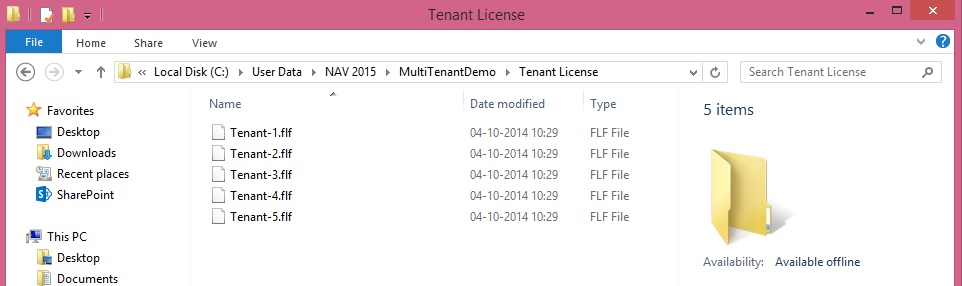
License-1
Set-ExecutionPolicy unrestricted -Force

Import-Module 'C:\Program Files\Microsoft Dynamics NAV\80\Service\NavAdminTool.ps1'

Import-NAVServerLicense MTenantDemo -Tenant 'Tenant-1' -LicenseData ([Byte[]]$(Get-Content -Path "C:\User Data\NAV 2015\MultiTenantDemo\Tenant License\Tenant-1.flf" -Encoding Byte))

Import-NAVServerLicense MTenantDemo -Tenant 'Tenant-2' -LicenseData ([Byte[]]$(Get-Content -Path "C:\User Data\NAV 2015\MultiTenantDemo\Tenant License\Tenant-2.flf" -Encoding Byte))

Import-NAVServerLicense MTenantDemo -Tenant 'Tenant-3' -LicenseData ([Byte[]]$(Get-Content -Path "C:\User Data\NAV 2015\MultiTenantDemo\Tenant License\Tenant-3.flf" -Encoding Byte))

Import-NAVServerLicense MTenantDemo -Tenant 'Tenant-4' -LicenseData ([Byte[]]$(Get-Content -Path "C:\User Data\NAV 2015\MultiTenantDemo\Tenant License\Tenant-4.flf" -Encoding Byte))

Import-NAVServerLicense MTenantDemo -Tenant 'Tenant-5' -LicenseData ([Byte[]]$(Get-Content -Path "C:\User Data\NAV 2015\MultiTenantDemo\Tenant License\Tenant-5.flf" -Encoding Byte))

Copy the above Script and paste into the Microsoft Dynamics NAV 2015 Administration Shell.

License-2

Our License have now successfully uploaded to respective databases. As the message suggest we need to re-start the service so that new License comes into effect.
You can use above Script to Upload License to individual Tenants, License could be different or same depends how you discussed with Microsoft and purchased.