Showing posts with label Object. Show all posts

Monday, 4 January 2016

Which Object types you can Include & Restrictions applicable to C/AL code in Extension Packages

For Overview, please see my earlier post Introducing Extensions in Microsoft Dynamics NAV 2016

When you create extension package you can include new as well as modified objects.

In Microsoft Dynamics NAV 2016, these object types can be added and included in an extension:

  • Pages

  • Tables

  • MenuSuites

  • Codeunits


You can modify these existing object types as permitted by your license:

  • Pages

  • Tables

  • Action Items


You will not be able to add or modify any other object types in this version.

You are not allowed to delete any existing objects.

You will also need to be sure not to modify any existing C/AL code, including code in codeunits and in triggers on existing objects.

In case you want to modify existing code, use the new C/AL eventing model.

To know more about Events see by earlier posts:

  1. Events in C/AL Navision 2016

  2. Implementing Events in Navision 2016


This restriction is only on existing code and objects. However New pages, tables, and so on, can contain C/AL code as it is considered part of the new object.

Tuesday, 18 August 2015

Using Query Object to Calculate the Cue Data

Today we will learn to create a query to update Cue data.
SI-Cue-1

Creating a Query for Calculating the Cue Data
First, we will create a query object to calculate the number of open sales invoices from table 21 Cust. Ledger Entry.
Create a query for calculating the Cue data as below:
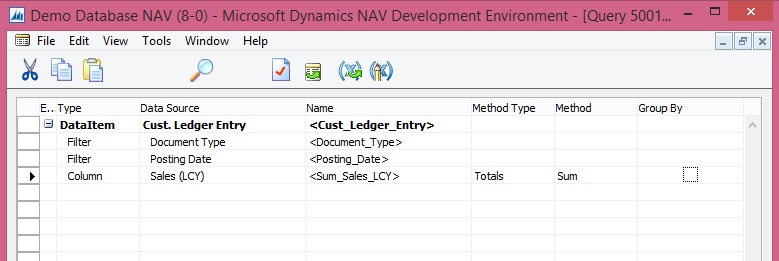
SI-Cue-2
Save the query.

Adding the Table Field for the Cue Data
Next we will add a field to the table Sales Invoice Cue (create new table) for holding the Cue data.
SI-Cue-3

SI-Cue-4
We will add a global function that returns the total amount of sales invoices for the current month from the query object that we created above procedure.

To add C/AL code to the table calculate the Cue data
Add a global function that is called CalcSalesThisMonthAmount as follows:

On the View menu, choose C/AL Globals.

On the Functions tab, in the Name column, enter CalcSalesThisMonthAmount.

Select the new function, and then in the View menu, select Properties.

Set the Local property to No.

In the C/AL Globals window, select the new function, and then choose Locals.

On the Return Value tab, set Name field to Amount and the Return Type field to Decimal.

On the Variables tab, add two variables as shown in the following table:


NameDataTypeSubtype
CustLedgerEntryRecordCust. Ledger Entry
CustLedgerEntrySalesQueryCust. Ledg. Entry Sales

In C/AL code, add the following code on the CalcSalesThisMonthAmount function:
CustLedgerEntrySales.SETRANGE(Document_Type,CustLedgerEntry."Document Type"::Invoice);

CustLedgerEntrySales.SETRANGE(Posting_Date,CALCDATE('<-CM>',WORKDATE),WORKDATE);

CustLedgerEntrySales.OPEN;

IF CustLedgerEntrySales.READ THEN

Amount := CustLedgerEntrySales.Sum_Sales_LCY;

SI-Cue-5
Save the table.

Adding the Cue to the Role Center Page
To display the Cue fields on the Role Center, We will create a new Page [PageType  = CardPart] name Sales Invoice Cue.
SI-Cue-6

SI-Cue-7
Page Designer should look similar to shown above illustration.

Open the C/AL code for the page, and then add the following code to the OnAfterGetRecord Trigger to assign the Sales This month field to the CalcSalesThisMonthAmount function of table Sales Invoice Cue:
"Sales This Month" := CalcSalesThisMonthAmount;

SI-Cue-8
Also add code to the OnOpenPage Trigger.
RESET;
IF NOT GET THEN BEGIN
INIT;
INSERT;
END;

Formatting the Cue Data
We does not want to display any decimal places. To achieve this, we set the AutoFormatType Property and AutoFormatExpr Property of the Cue field on the page. As shown above.

To change the data format

In the Properties window, set the AutoFormatType property to 10.

This enables you to create a custom data format.

Set the AutoFormatExpr property to the following text.
'<precision,0:0><standard format,0>'

<precision,0:0> specifies not to display any decimals places.

<standard format,0> specifies to format the data according to standard format 0.

Close the Properties windows, and then save and compile the page.

Run the Page created above the output should be similar to as below:
SI-Cue-9

Now you can add this CardPart Page to any of your Role Centre Page.

Thursday, 6 August 2015

Object Specifications and Limitations – in Navision 2015

Today I would like to discuss few important information. It always good to know out limitations, so do the limitation of the tools we are using. It helps in planning the design what all are possible and where are the limitations.

This could be also helpful for person taking interviews or appearing for interviews.

Below are the specifications and limitations for the database and application objects.

Specifications for the database


Feature Characteristic
Maximum number of physical disk files16
Database file size256 GB
Maximum number of objects in a database1,000,000,000
Maximum number of characters in application object names30
Maximum number of characters in a Database Authentication password80

Specifications for Tables


Feature Characteristic
Range for table object ID numbers1 - 999,999,999
Maximum number of characters in a table name30
Maximum table sizeDepends on available storage
Maximum number of records in a tableDepends on available storage
Maximum record size8000 bytes
Maximum number of fields in a record500
Range for field numbers1 - 999,999,999
Maximum number of keys for a table40
Maximum size of a Microsoft Dynamics NAV key900 bytes
Maximum number of distinct fields per key16
Maximum size of an index900 bytes
Maximum number of SumIndexFields per key20
Maximum number of characters in a text or code field250
Maximum size of a BLOB field2 GB
Maximum number of characters in a field name30

 Specifications for Pages and Reports


Feature Characteristic
Range for page or report object ID numbers1 - 999,999,999
Maximum number of characters in a caption1024
Maximum bitmap size in bitmap property32500 bytes

Specifications for Codeunits


Feature Characteristic
Range for codeunit object ID numbers1 - 999,999,999
Maximum number of characters in variable names30
Maximum number of dimensions in array variables10
Maximum number of elements in an array variable1,000,000
Maximum physical size of a codeunit2 GB
Lower bound of index in an array1

All application objects are identified by an ID number. There are restrictions, however, on the numbers you can use when you create your own application objects. Check with your Partner License Agreement for more information.

Monday, 3 August 2015

Usage of RUNREQUESTPAGE, EXECUTE, SAVEAS and PRINT function of Reports Object

Today we will discuss usage of RUNREQUESTPAGE, EXECUTE, SAVEAS and PRINT function of Report Object.

You will be using RUNREQUESTPAGE function to run the request page of desired Report.

We will save the value of Parameters in Table for further use. For this we will require to create a table with below structure let name it as Report Request Parameters.

Create a table called Report Request Parameters that has the following fields.


Field Name Data Type Length
ReportIdInteger
UserIdCode100
ParametersBLOB

ReportParameter-1

Then we will use these value with

EXECUTE – To preview the report.

SAVEAS – To save it as pdf file.

PRINT – To print the Report.

To continue with our demo we will require to create a codeunit, let’s name it as Using Report Functions.

We will add the following variables in the C/AL Globals window.


Variable name DataType Subtype Length
ReportParametersRecordReport Request Parameters
XmlParametersText
OStreamOutStream
IStreamInStream
CurrentUserCode100
ContentFile
TempFileNameText

ReportParameter-2

Now we will add the following code to the OnRun trigger of the codeunit.

We will be taking Report 206 as an example for this demo.

ReportParameter-3

You can copy below code for your demo.
// Use the REPORT.RUNREQUESTPAGE function to run the request page to get report parameters

XmlParameters := REPORT.RUNREQUESTPAGE(206);

CurrentUser := USERID;

// Save the request page parameters to the database table

WITH ReportParameters DO BEGIN

// Cleanup

     IF GET(206,CurrentUser) THEN

DELETE;

SETAUTOCALCFIELDS(Parameters);

ReportId := 206;

UserId := CurrentUser;

Parameters.CREATEOUTSTREAM(OStream,TEXTENCODING::UTF8);

MESSAGE(XmlParameters);

OStream.WRITETEXT(XmlParameters);

INSERT;

END;

CLEAR(ReportParameters);

XmlParameters := '';

// Read the request page parameters from the database table

WITH ReportParameters DO BEGIN

SETAUTOCALCFIELDS(Parameters);

GET(206,CurrentUser);

Parameters.CREATEINSTREAM(IStream,TEXTENCODING::UTF8);

IStream.READTEXT(XmlParameters);

END;

// Use the REPORT.SAVEAS function to save the report as a PDF file

Content.CREATE('TestFile.pdf');

Content.CREATEOUTSTREAM(OStream);

REPORT.SAVEAS(206,XmlParameters,REPORTFORMAT::Pdf,OStream);

Content.CLOSE;

// Use the REPORT.EXECUTE function to preview the report

REPORT.EXECUTE(206,XmlParameters);

// Use the REPORT.Print function to print the report

REPORT.PRINT(206,XmlParameters);

We are done, definitely this will help you doing some useful stuffs in your projects.

Run the Codeunit and see the output. You will get three output
a) Report Output will be saved as pdf, you can specify your custom path to save the file to specified location.

b) Report Print Preview

c) Report will be send for Printing