Showing posts with label Tables. Show all posts

Monday, 30 November 2015

Using Argument Tables in Navision

When creating functions we sometimes need a lot of parameters to give the information we require. Number of arguments/parameters to function have limits.

Sometimes these parameters are optional, only required in some scenarios.

This makes calling them quite hard. The code becomes hard to read & understand, and sometimes spread across multiple lines.

When changing the signature of any std. function or already implemented functionality which is highly used over the system in several objects you might end up changing an endless chain of objects.

Imaging adding a field to such function, or change a datatype. The amount of code affected is pretty big and if you need to parameter only for one specific case you end up changing a lot of code for no purpose. Does this make sense?

These challenges can be solved by grouping commonly used arguments in a single table and use that table as the parameter of a function.

So the solution is to create a single table that holds the contract for the function.

When we add new fields to the table, we effectively do not change the signature of the function hence this acts as overloading allowing optional parameters to change the behavior of the code.

You can find usage of such Argument Tables in below objects:

Type      ID            Name

1              9500       Email Item

5              260         Document-Mailing

5              9520       Mail Management

Table is created to hold Parameter Values which will be passed to the function.
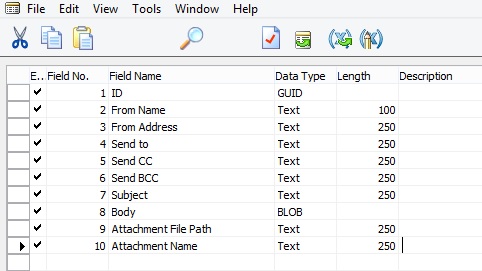
ArgumentTables-1

This Function in Table Pass the record as a parameter to the function, basically this is passing 10 Parameters using single record as a Parameter to the Function.

ArgumentTables-2

In Codeunit Document-Mailing below function, This is the extra work which you will be required to perform, if you miss this part you may not get errors at compile time but all the 10 Parameters will be passed as blank. This may be counted as side-effect of using such concept.

ArgumentTables-3

In Codeunit Mail Management below function, This Pass the record as a parameter to the function, basically this is passing 10 Parameters using single record as a Parameter to the Function.
ArgumentTables-4

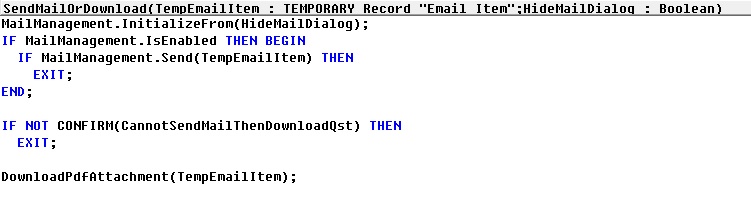
In Codeunit Mail Management below function, This receives the record as a parameter to the function, basically this is receiving 10 Parameters using single record as a Parameter to the Function.
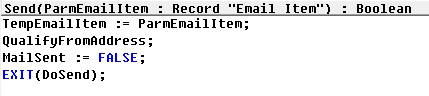
ArgumentTables-5

Best part is Argument tables can be outside of a customer’s license file since we never insert data in the SQL Server database.

For more details you can see this Link. https://community.dynamics.com/nav/w/designpatterns/245.argument-table


Wednesday, 7 October 2015

Filter Pages for Filtering Tables using FILTERPAGEBUILDER

In C/AL code, you can use the FILTERPAGEBUILDER data type to create a filter page that enables users to set filters on multiple tables. Filter pages contains one or more filter controls, where each filter control can be used to set filters on a specific table. In the Microsoft Dynamics NAV client, filter pages are generated at runtime and run in a modal dialog box.

For demo purpose I have created a List page on Item Table. I have added below Variables and Code on Page.
filterpagebuiler-1
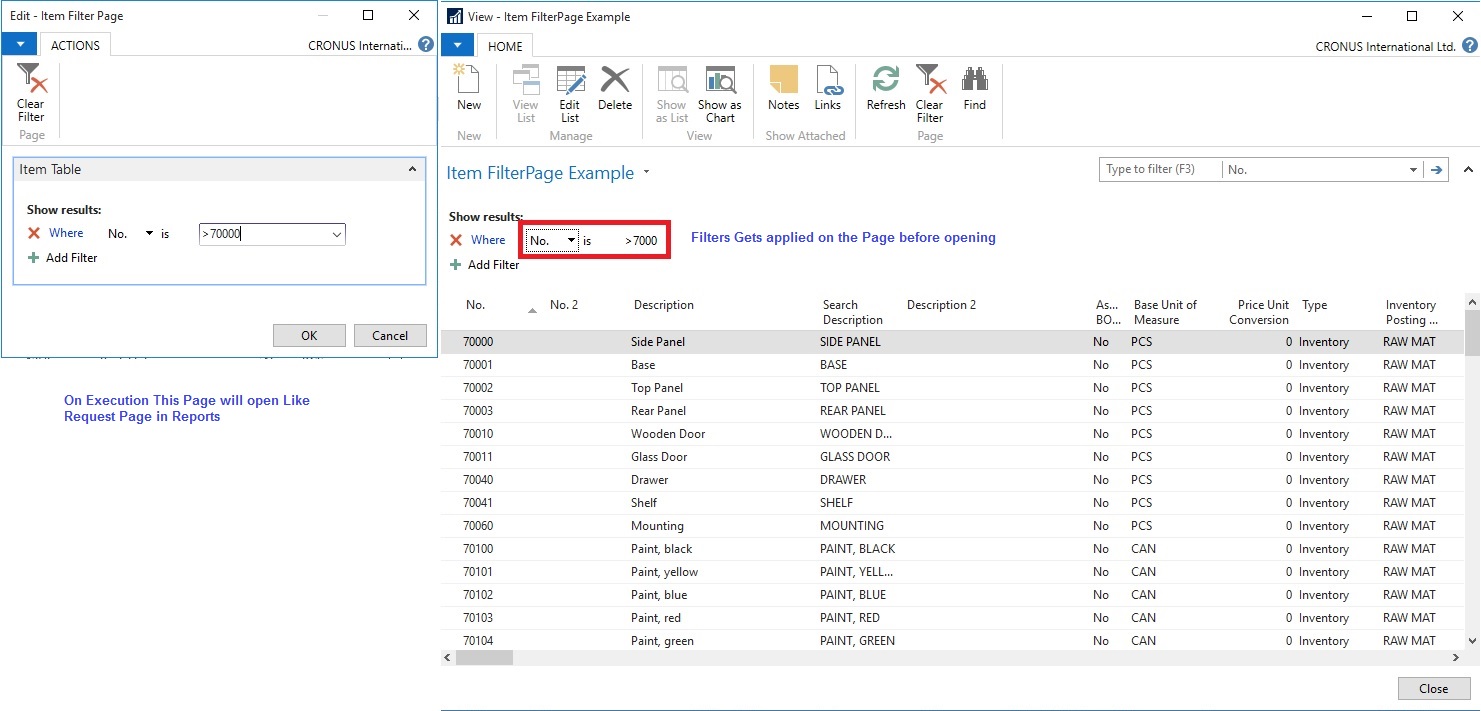
When I Run the Page, First Request page is popup to accept filters. Then my Item List Page is opened applying the filter I provided on the Request Page.
filterpagebuiler-2
FILTERPAGEBUILER Data Type Functions

ADDTABLE Function

Adds a filter control for a table to a filter page.

ADDRECORD Function

Adds a filter control for a table to a filter page as specified by a record data type variable.

ADDRECORDREF Function

Adds filter control for a table to a filter page as specified by a recordref variable.

ADDFIELD Function

Adds a table field to the filter control for a table on filter page.

ADDFIELDNO Function

Adds a table field to the filter control for a table as specified by the field number.

GETVIEW function (FilterPageBuilder)

Gets the filter view (which defines the sort order, key, and filters) for the record in the specified filter control of a filter page.

SETVIEW Function

Sets the current filter view, which defines the sort order, key, and filters, for a record in a filter control on a filter page.

RUNMODAL Function (FilterPageBuilder)

Builds and runs the filter page.

COUNT Function (FilterPageBuilder)

Gets the number of filter controls that are specified in the FilterPageBuilder object instance.

NAME Function (FilterPageBuilder)

Gets the name of a table filter control that is included on a filter page based on an index number that is assigned to the filter control.

Tuesday, 11 August 2015

How to list Virtual Tables in Navision

You may have seen several posts listing the Virtual tables. Most of they say you create page/form and type in one by one table id in Range (2000000001.. 2000000200) and find the Virtual Tables and note them.
Today I will demo you easy way for getting this list with no additional efforts.

You will get below table list in every posts. I have listed tables below in Nav-2015.


Object DesignerVirtualItself from Virtual Table
TypeIDName Object TypeObject IDObject Name
YesTable2000000001Object
12000000004Permission SetTable2000000004Permission Set
12000000005PermissionTable2000000005Permission
12000000006CompanyTable2000000006Company
YesTable2000000007Date
YesTable2000000009Session
YesTable2000000020Drive
YesTable2000000022File
YesTable2000000026Integer
YesTable2000000028Table Information
YesTable2000000029System Object
YesTable2000000038AllObj
YesTable2000000039Printer
YesTable2000000040License Information
YesTable2000000041Field
YesTable2000000043License Permission
YesTable2000000044Permission Range
YesTable2000000045Windows Language
YesTable2000000048Database
YesTable2000000049Code Coverage
12000000053Access ControlTable2000000053Access Control
YesTable2000000055SID - Account ID
YesTable2000000058AllObjWithCaption
YesTable2000000063Key
12000000065Send-To ProgramTable2000000065Send-To Program
12000000066Style SheetTable2000000066Style Sheet
12000000067User Default Style SheetTable2000000067User Default Style Sheet
12000000068Record LinkTable2000000068Record Link
12000000069Client Add-inTable2000000069Client Add-in
12000000071Object MetadataTable2000000071Object Metadata
12000000072ProfileTable2000000072Profile
12000000073User PersonalizationTable2000000073User Personalization
12000000074Profile MetadataTable2000000074Profile Metadata
12000000075User MetadataTable2000000075User Metadata
12000000076Web ServiceTable2000000076Web Service
12000000078ChartTable2000000078Chart
12000000079Object TrackingTable2000000079Object Tracking
12000000080Page Data PersonalizationTable2000000080Page Data Personalization
12000000100Debugger BreakpointTable2000000100Debugger Breakpoint
YesTable2000000101Debugger Call Stack
YesTable2000000102Debugger Variable
YesTable2000000103Debugger Watch Value
12000000104Debugger WatchTable2000000104Debugger Watch
12000000110Active SessionTable2000000110Active Session
12000000111Session EventTable2000000111Session Event
12000000112Server InstanceTable2000000112Server Instance
12000000114Document ServiceTable2000000114Document Service
12000000120UserTable2000000120User
12000000121User PropertyTable2000000121User Property
12000000130DeviceTable2000000130Device
YesTable2000000135Table Synch. Setup

All marked as Yes in above table under Virtual column are all the Virtual Tables.

I have not type one by one in the Page/form to get this list.

The Virtual table itself in Navision lists the Virtual tables in Navision. List can be different depending on the Version of Navision you see them.

Today I will share you smart way of finding this list of Virtual tables.

Next time you need not to do so hard work to list all the Virtual tables.

Here too you need to create a list page but you will not be required to key in the id of tables one by one, in fact only one table id which will give answers to your query.
VirtualTables-1
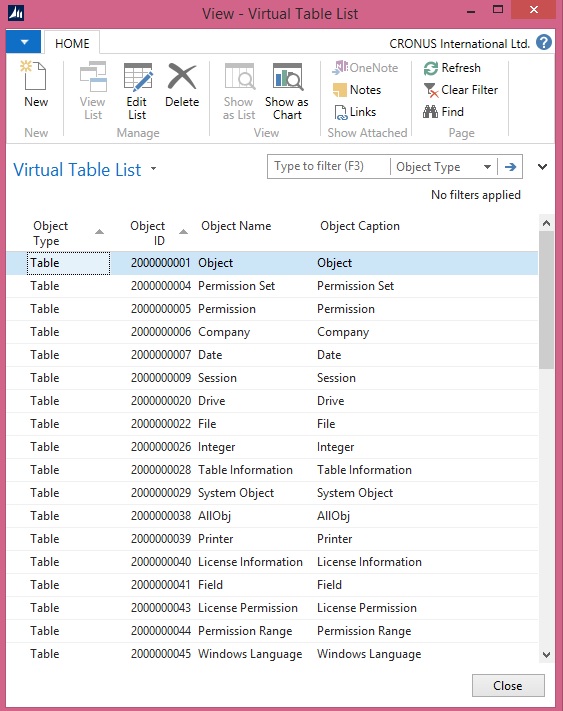
Save and execute your Page/Form.

VirtualTables-2
Now go to object Designer. Copy all the tables with id in range defined above and paste in Excel.

Copy above table list in Excel side by side and compare as above table shown in beginning of the post. All those which don’t match are your Virtual tables.

So easy, if anything is available why to waste effort for same.

It always good to share what you know with community, by this way we keep learning from each other.

Stay tuned for many such Tips.