Today I will discuss, how to create reports in Excel using Jet Reports.
Below links will be helpful to refresh what I have shared till now:
Installing Jet Express for Excel – Navision 2015Installing and Publishing the Jet Business Objects on the Microsoft Dynamics ServerPublishing the Jet Data Source Codeunit to the Web ServiceEnable SOAP Services and identify connection parametersConfiguring a Data Source in Jet ExpressUsing Jet Report NL FunctionUsing Jet Report NF FunctionUsing Link in Jet ReportsWe will be using NL Functions.
Also we will introduce few Arguments for NL Function.
Below Table describes the same:
Parameter |
Argument |
Description |
What |
|
|
|
"Link" |
Returns a string value that can be used as a filter in another NL function |
|
"LinkField" |
Returns a string used to retrieve a field from a link table in an NL(Table) function. |
|
"Table" |
Creates an Excel table object based on the field values returned. Leaving the Field argument blank returns all fields. Use a Field Cache to return multiple fields. |
|
|
|
FilterField |
|
|
|
"Headers=" |
Overrides field headers with the array of headers specified by the Filter argument. For use with an NL(Table) or NL(Lookup) function. |
|
"TableName=" |
Specifies the name to use for the Excel table object created by NL(Table) with the name in the Filter parameter. Use this to refer to the table by name from a Pivot table. |
|
"Filters=" |
Specifies a set of filters for the query with an array of filters specified by the Filter argument. |
|
"InclusiveLink=" |
Links the primary table to the one specified by the Filter argument for the purpose of retrieving data. |
|
"IncludeDuplicates=" |
When the value of the Filter argument is TRUE, specifies that all matching records from the source data will be included in the NL(Table) results. |
We will design below report to see how Jet Report is designed.
 Below describes the Formulas need to be inserted in respective cells.Make sure you add ‘=’ in front of Formulas as defined in Data Type Column.
Cell Reference |
Formula |
Data Type |
|
|
|
F10 |
NL("Link","Item",,"No.","=Item No.") |
Formula |
G10 |
NL("Link","Customer",,"No.","=Source No.") |
Formula |
F11 |
Entry No. |
Text |
G11 |
Document No. |
Text |
H11 |
Posting Date |
Text |
I11 |
Item No. |
Text |
J11 |
Item – Description |
Text |
K11 |
Gen. Prod. Posting Group |
Text |
L11 |
Customer No. |
Text |
M11 |
Customer Name |
Text |
N11 |
Item Ledger Entry Quantity |
Text |
F12 |
Entry No. |
Field Names |
G12 |
Document No. |
Field Names |
H12 |
Posting Date |
Field Names |
I12 |
Item No. |
Field Names |
J12 |
NL("LinkField","Item","Description") |
Formula |
K12 |
NL("LinkField","Item","Gen. Prod. Posting Group") |
Formula |
L12 |
Source No. |
Field Names |
M12 |
NL("LinkField","Customer","Name") |
Formula |
N12 |
Item Ledger Entry Quantity |
Field Names |
E13 |
NL("Table","Value Entry",$F$12:$N$12,"Headers=",$F$11:$N$11,
"TableName=","ValueEntry","Filters=",$C$5:$D$8,"InclusiveLink=",$F$10,
"InclusiveLink=Value Entry",$G$10,"IncludeDuplicates=","True") |
Formula |
Although you can directly key in the text for NL commands and functions as formula. Below I show the Function Wizards for better understanding and how to use the same. All marked as Formula in above Table.
For Rest marked as Text or Field Names, you can key them directly in respective cells.


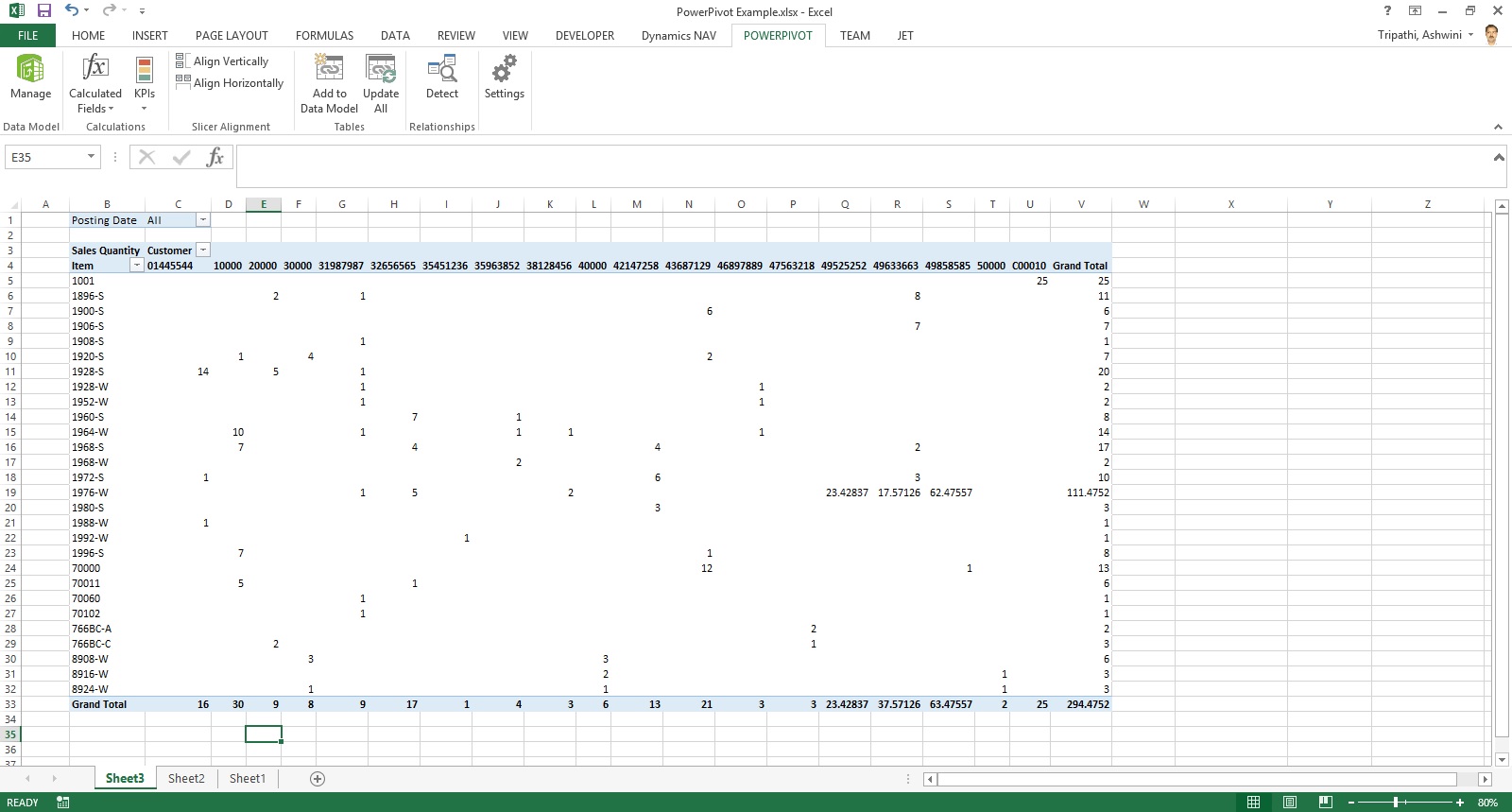
The output of Report will as below:

Stay tuned for upcoming posts for more detailed information.
I understand above example is bit complex I will come up with more simple and basic reports for beginners in my upcoming posts.